


Table of Contents
Any comments made on your linked Instagram and Facebook pages are sent directly to CHAT App, where you can respond to them just as you would in a standard chat.
Manual Replying to Comments
Manage your social engagement directly from your team inbox without switching between apps.
- Direct Integration: Comments from your connected Facebook and Instagram pages are delivered straight to CHAT App.
- Unified Conversations: You can reply to these comments as if they were a standard chat message.
- Rich Message Support: While text is fully supported, please note that elements like images, videos, chips, buttons, and selection options are not currently rendered in the comment itself. You will see the final rendered comment after sending.
Automated Chatbot for Comments
Leverage automation to handle high volumes of public interactions.
- Bot Responses: The chatbot can be programmed to automatically reply to public comments.
- Human Takeover: If a user needs personalized help, the human takeover feature is fully supported, allowing an agent to step in and pause the bot.
- Easy Controls: If you prefer to handle comments manually, you can deactivate the bot for these specific interactions via Settings > Messenger > Disable chatbot for comments.
DM for Comments
Turn public engagement into private conversations automatically.
- Auto-DM: This feature automatically sends a direct message to users who comment on your Instagram posts for the first time.
- Global Activation: To enable this for every post on your page, simply leave the Post ID field empty. If you want it for a specific campaign, enter the corresponding ID.
How to Enable
Ensure your accounts are correctly configured to allow CHAT App to receive data.
- Instagram Mobile App: Navigate to Settings > Privacy > Messages & Forms > Connected tools and ensure Allow access is toggled on.
- Account Type: Your Instagram must be a Business Account (not a Professional/Creator account).
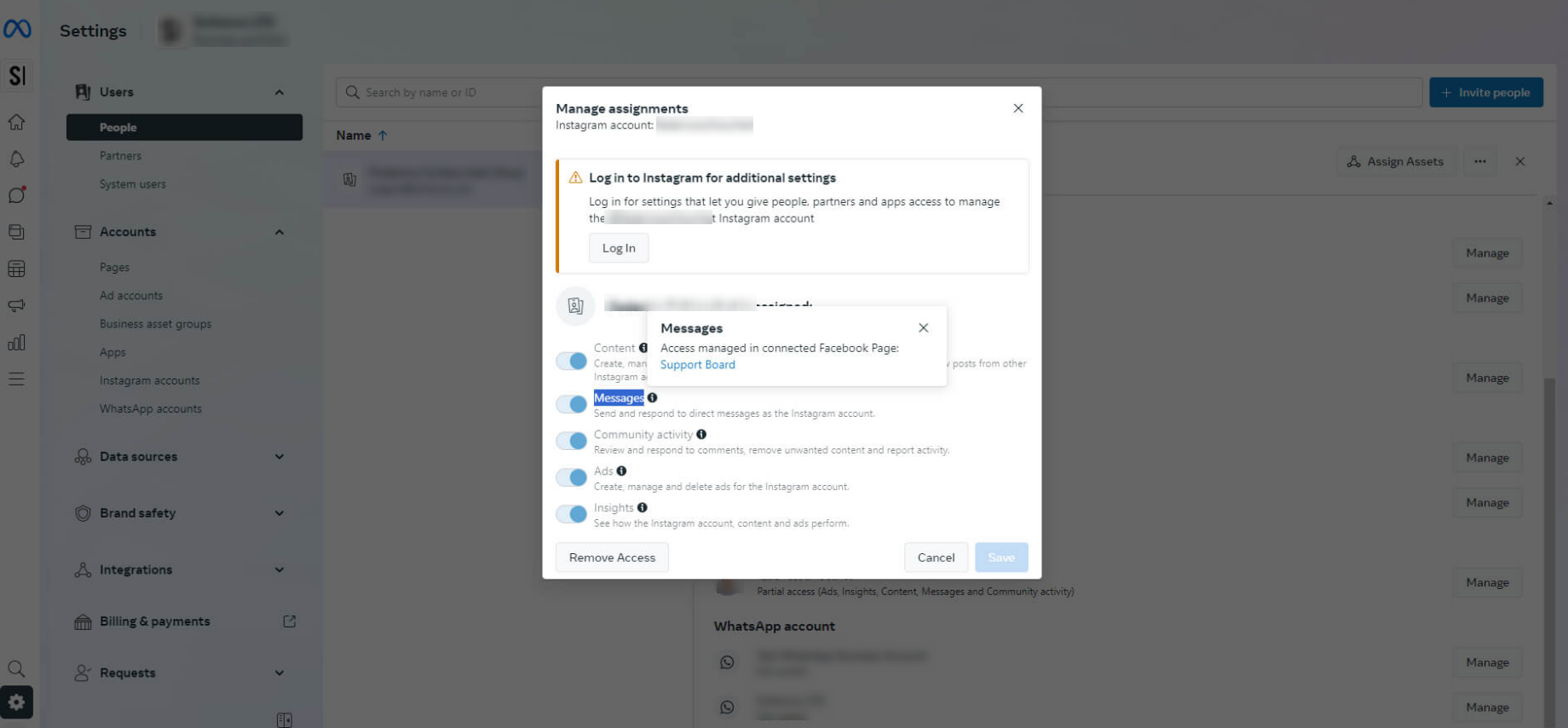
- Meta Business Suite: Go to Users > People, select your account under Instagram account, click Manage, and enable all permissions.
- Facebook Admin: To sync multiple pages, the account linked to CHAT App must be an administrator of all those pages.
- Clean Connection: Deactivate any native “Instant Replies” or “Welcome Messages” in your Facebook Page settings to avoid conflicts with the bot.
FAQs & Troubleshooting
- Why am I getting duplicate messages? This usually happens if you have two CHAT App installations or cloud accounts synced to the same Instagram. Remove the Instagram ID from the secondary account and click Unsubscribe.
- What are the character limits? Messages are limited to 1000 characters. Anything longer will be truncated.
- Can I see historical messages? No, the integration only synchronizes new messages sent after the connection is established.
- How are users identified? When someone messages you, they are created as a “Lead.” You will be able to see their profile name and picture.
- What about Facebook wall posts? Only private messages and direct comments appear in your inbox; posts made by users on your Facebook wall are not imported.
- Are rich messages modified? CHAT App converts its rich messages to Facebook/Instagram formats where possible. Note that buttons and chips are limited to a maximum of three choices and only function on the Instagram mobile app.
