


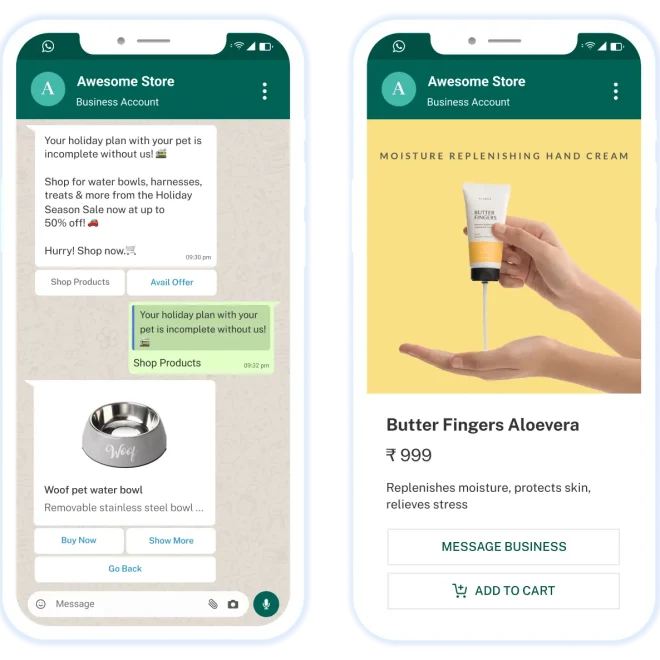
CHAT.devad.io provides many flexible option to connect your WhatsApp Business Number
WhatsApp Integration Options:
To install and connect WhatsApp with CHAT App, you have four primary options. Here is a quick overview to help you choose the best fit:
- Automatic Sync Mode: The easiest, fully automated method using the Cloud API. Ideal for users who want seamless, real-time synchronization.
- Manual Sync Mode: A hands-on method involving creating a Facebook App and manually managing tokens. Best for users who need custom configuration without using credits.
- 360dialog: A third-party provider alternative. Useful if you already have a 360dialog account or prefer their API structure.
- Twilio: A popular third-party provider. Best for users already in the Twilio ecosystem, though it requires purchasing a new number and has some feature limitations.
Detailed Steps
1st Option: Automatic Sync Mode:
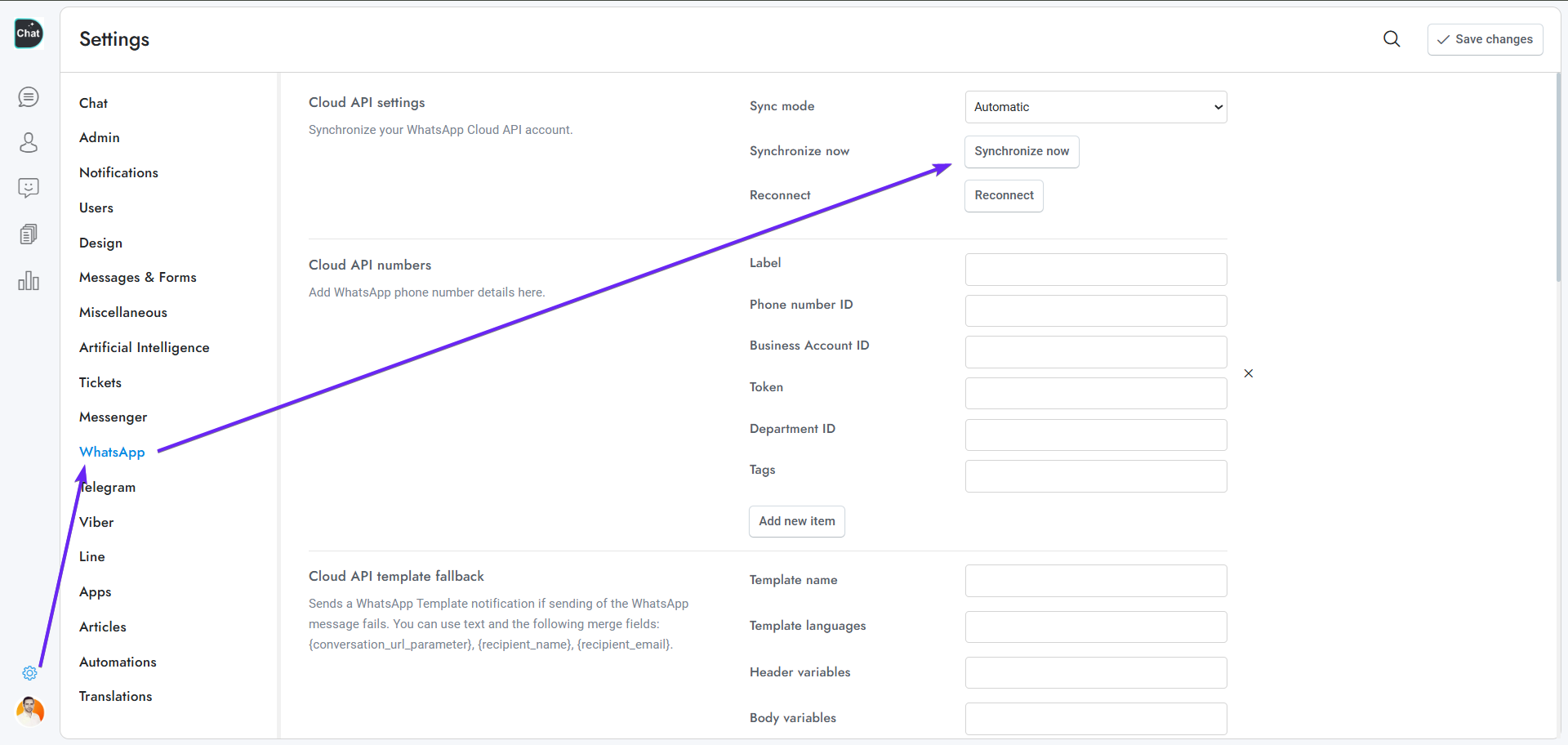
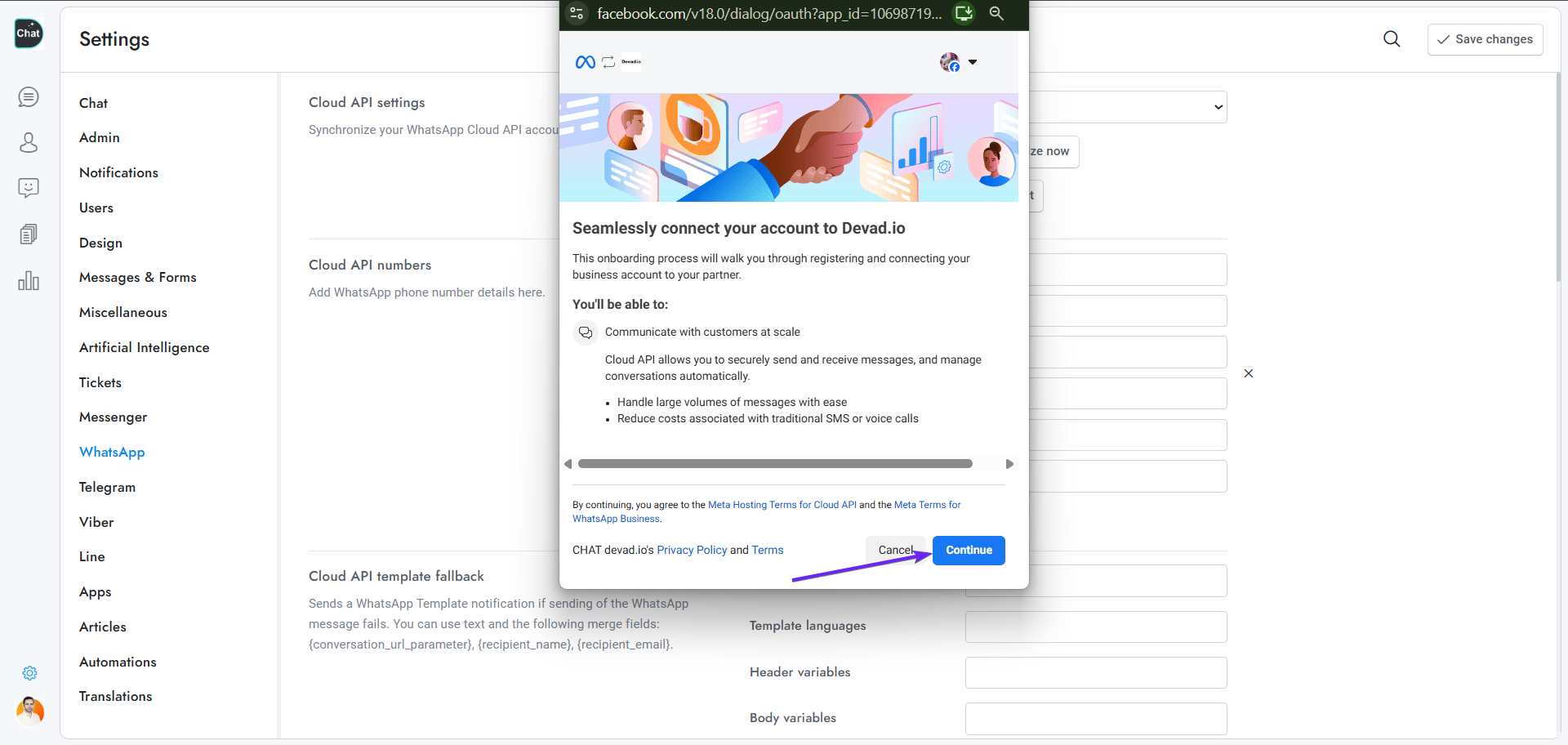
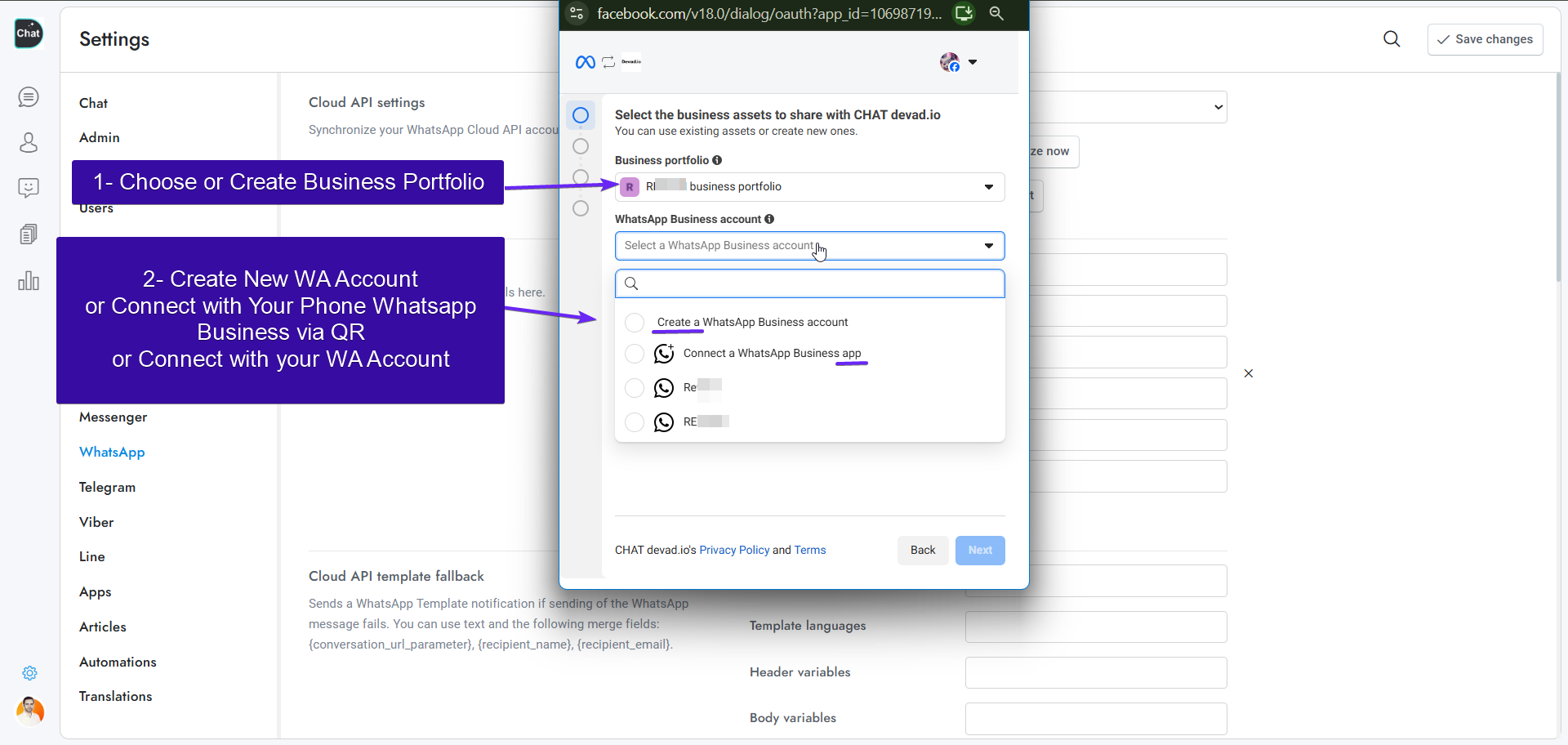
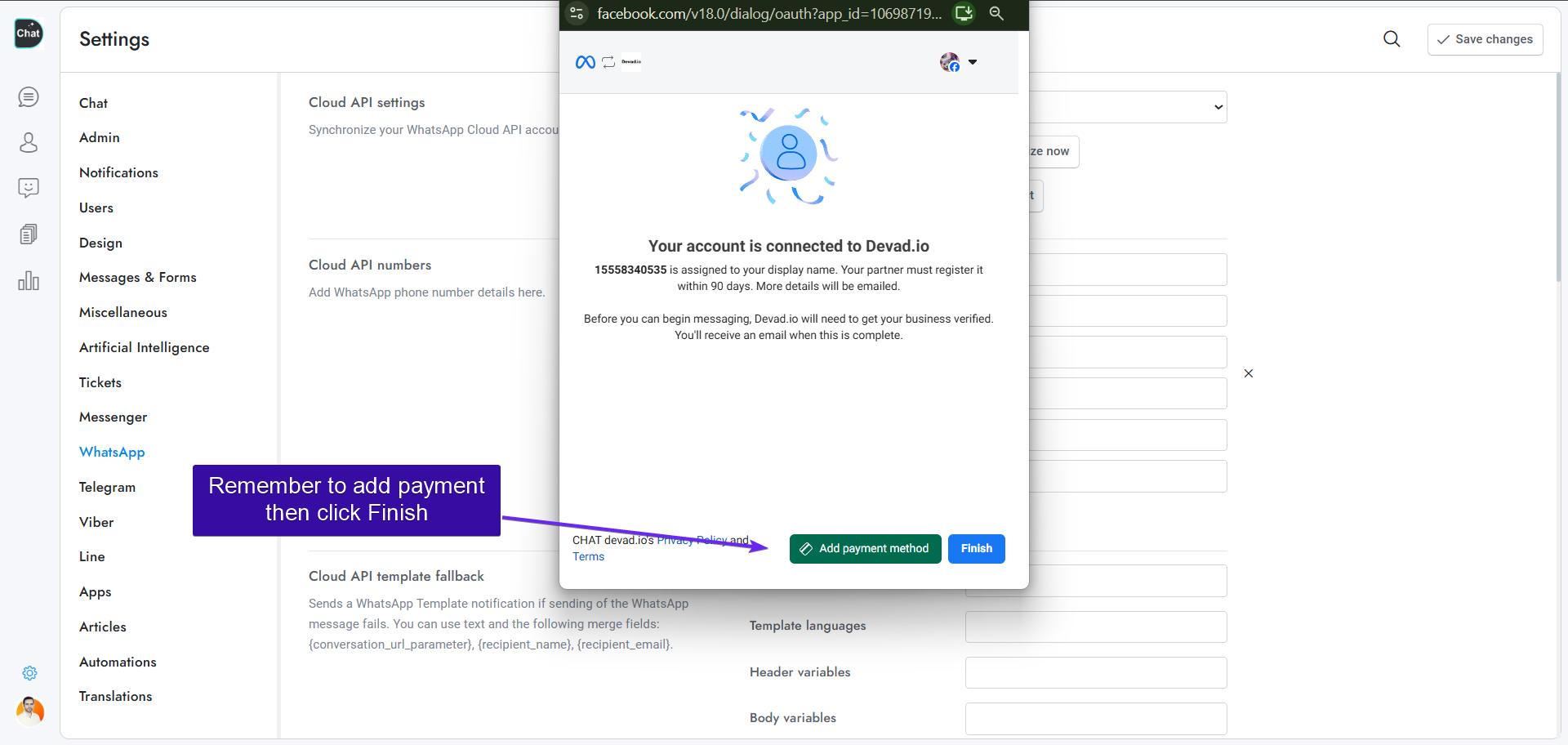
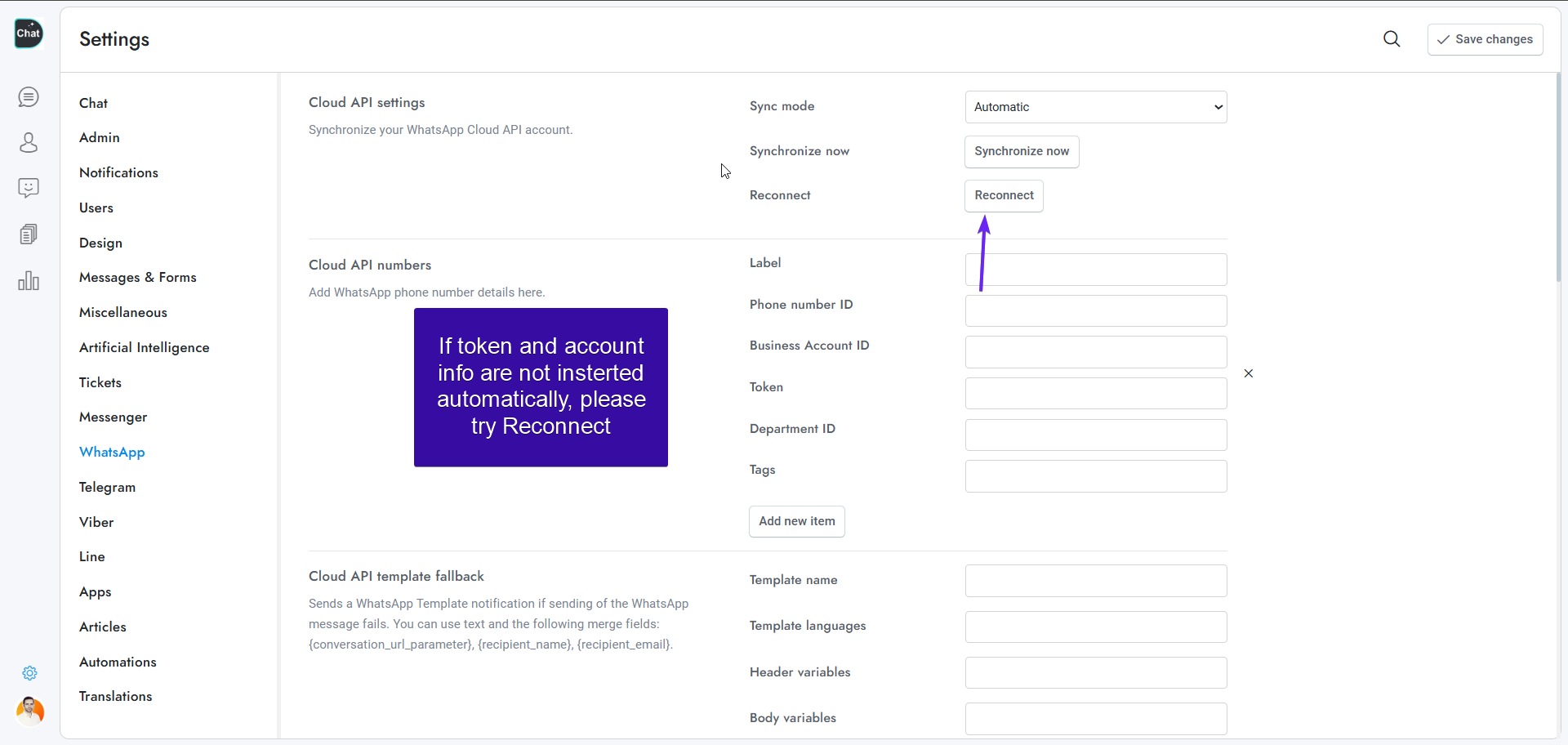
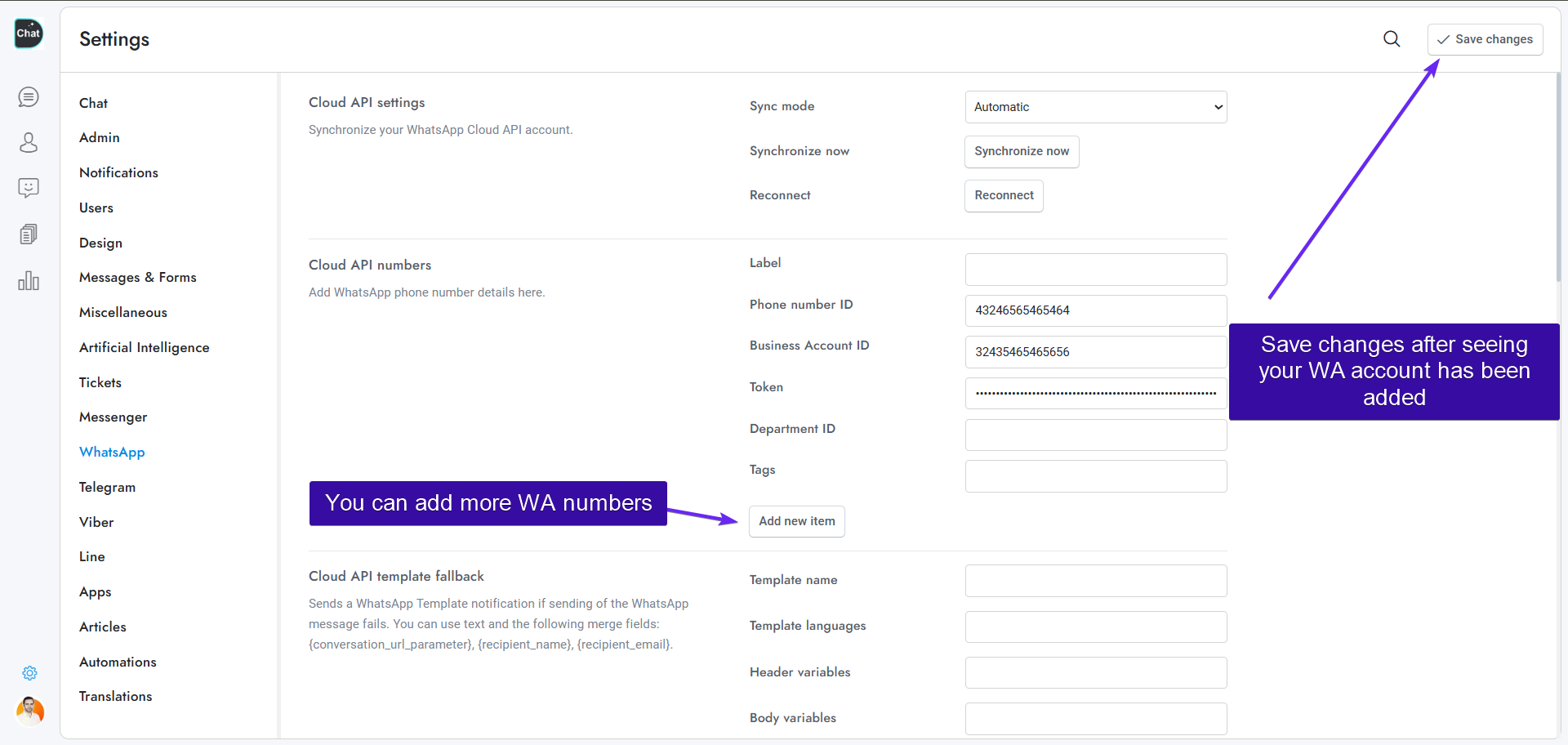
Steps Explanation:
- Click Synchronize now and complete the procedure.
- To add new numbers, visit https://business.facebook.com/wa/manage/phone-numbers/. If you add new numbers after the sync process, you will need to sync them again. All numbers will be automatically synchronized. If you wish to disable specific numbers, you can delete them from Settings > WhatsApp > Cloud API numbers.
- If you sync again with the same phone number and do not receive the verification SMS or call, you can enter the latest PIN you received and it will work.
If you do not receive the messages sent to your WhatsApp number in CHAT.devad.io, please check the following:
- Click Reconnect and complete the procedure.
- Go to the Meta Business Suite and add a payment method.
if you add new phone numbers, please navigate to https://business.facebook.com/wa/manage/phone-numbers/. If you add numbers after the initial setup, you must run the sync process again to include them, as all numbers are synchronized automatically. To disable specific lines, you can remove them via Settings > WhatsApp > Cloud API numbers. Finally, if you re-sync an existing number but do not receive a verification call or SMS, simply enter the last PIN you received, as it will still be accepted.
Troubleshooting: Sign-Up Errors
If you encounter issues during the Embedded Sign-Up process, here are common error messages and the steps you should take.
Before examining specific error messages (Automatic Mode or even Manual Mode), ensure you’ve addressed these common issues:
- Invalid Phone Number: You must use an active, standard mobile phone number (As Many virtual or VoIP numbers get rejected by WhatsApp).
- Onboarding Limits: Meta limits the number of new accounts you can create until your main business portfolio is fully verified. If you hit a limit, you may need to wait or accelerate verification.
- Missing Compliance: Your website, legal documents, or business information is incomplete or inconsistent.
- Lack of Admin Access: The Facebook account used to sign up must have full Admin access to the relevant Meta Business Account
- Invalid account linking. this is the most frequent issue’ It could be due to non-approved or pending Whatsapp Number or Whatsapp Manager .
Verfication & approval: The Whatsapp Manager and phone number both must be approved and verfied to be able to connect. other wise try Connect with Whatsapp Business App in facebook intergation windows
for most cases of failing connecting Whatsapp with our CHAT App (CHAT.devad.io) your WhatsApp number, your display name, or WhatsApp Account Manager may be pending review. Approval typically takes a few days; if it takes longer, please contact Meta Support regarding your Business Manager via this link: https://www.facebook.com/business-support-home/
after getting approved please try connecting with CHAT App.
if you dont want to wait, try using “Connecting with Whatsapp Business Mobile App” method.
2nd Option: Manual Sync Mode:
Go to https://chat.devad.io/?setting=whatsapp then from section Cloud API settings follow the steps below
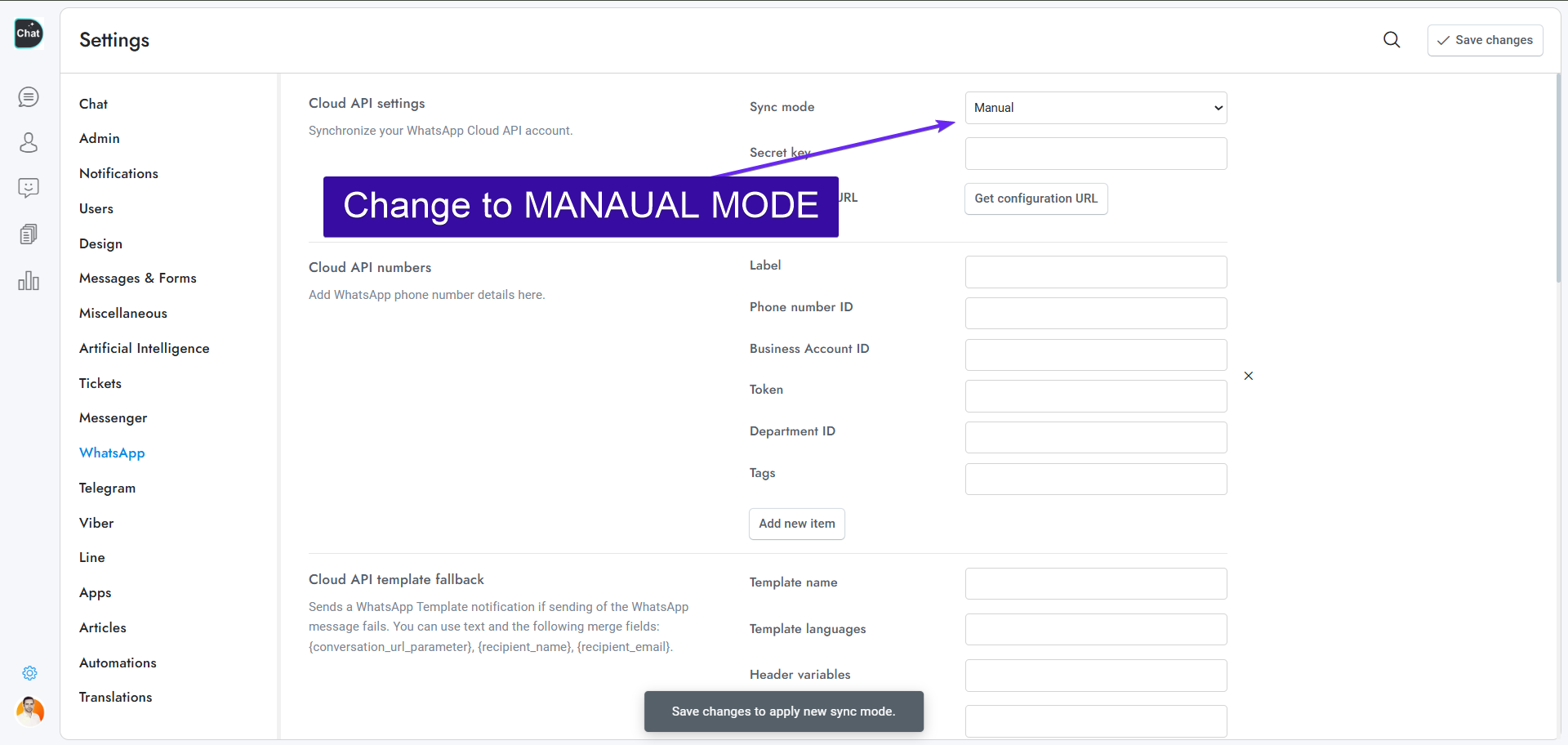
Steps Explanation:
- Create a new account at https://developers.facebook.com or login with your existing account.
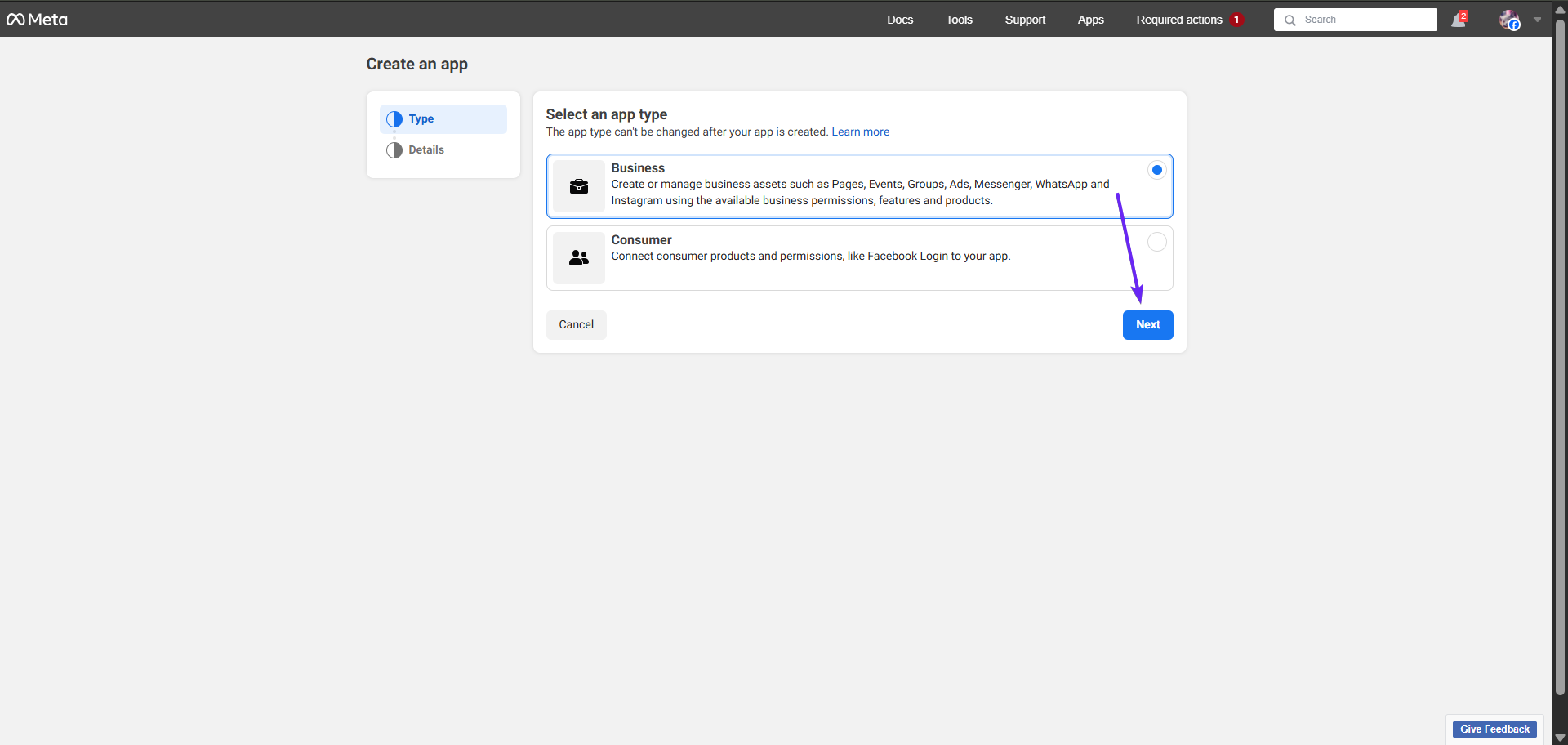
- Create a new app and choose Other as the app type. Then select Business. Enter a name for the app and select the Business Account used for WhatsApp.
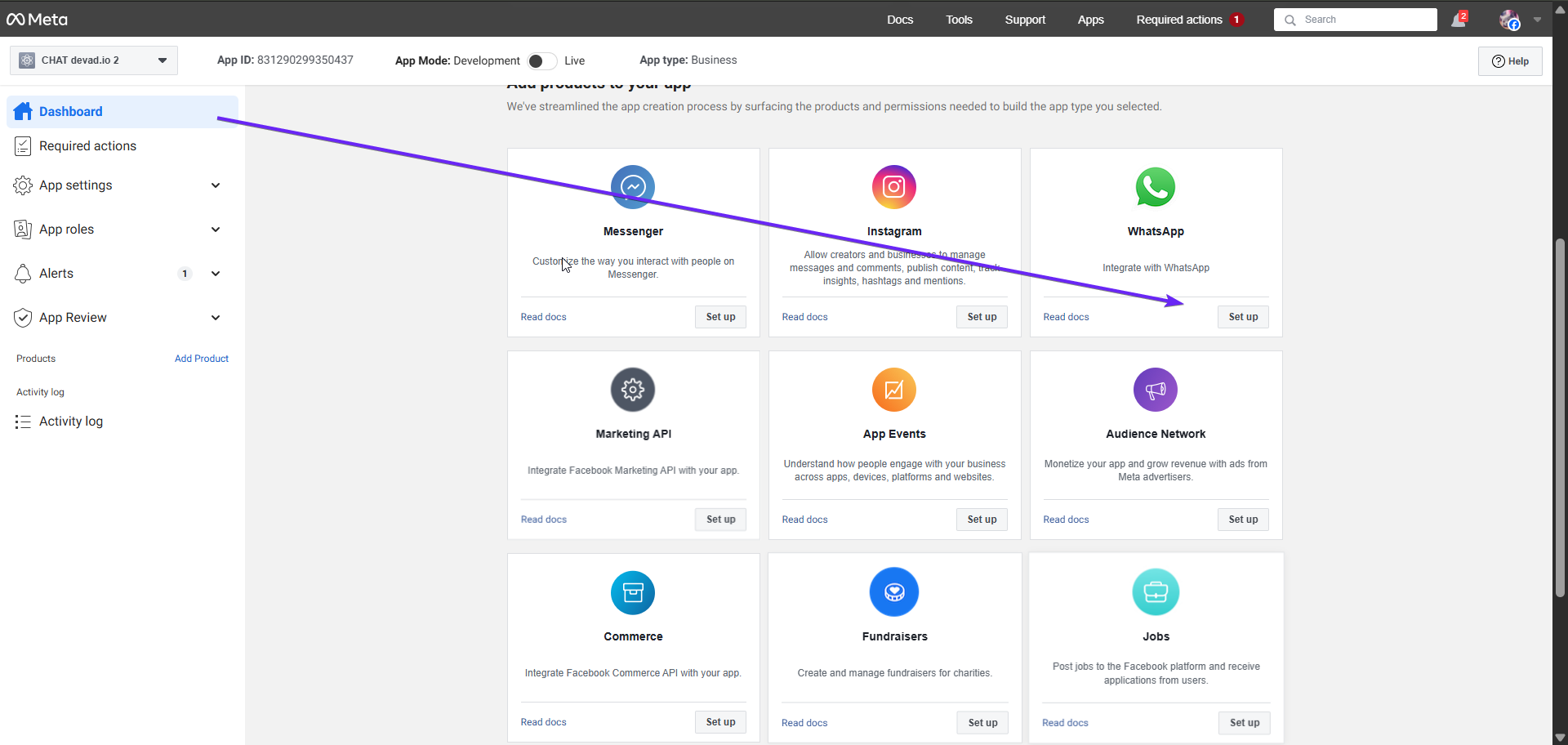
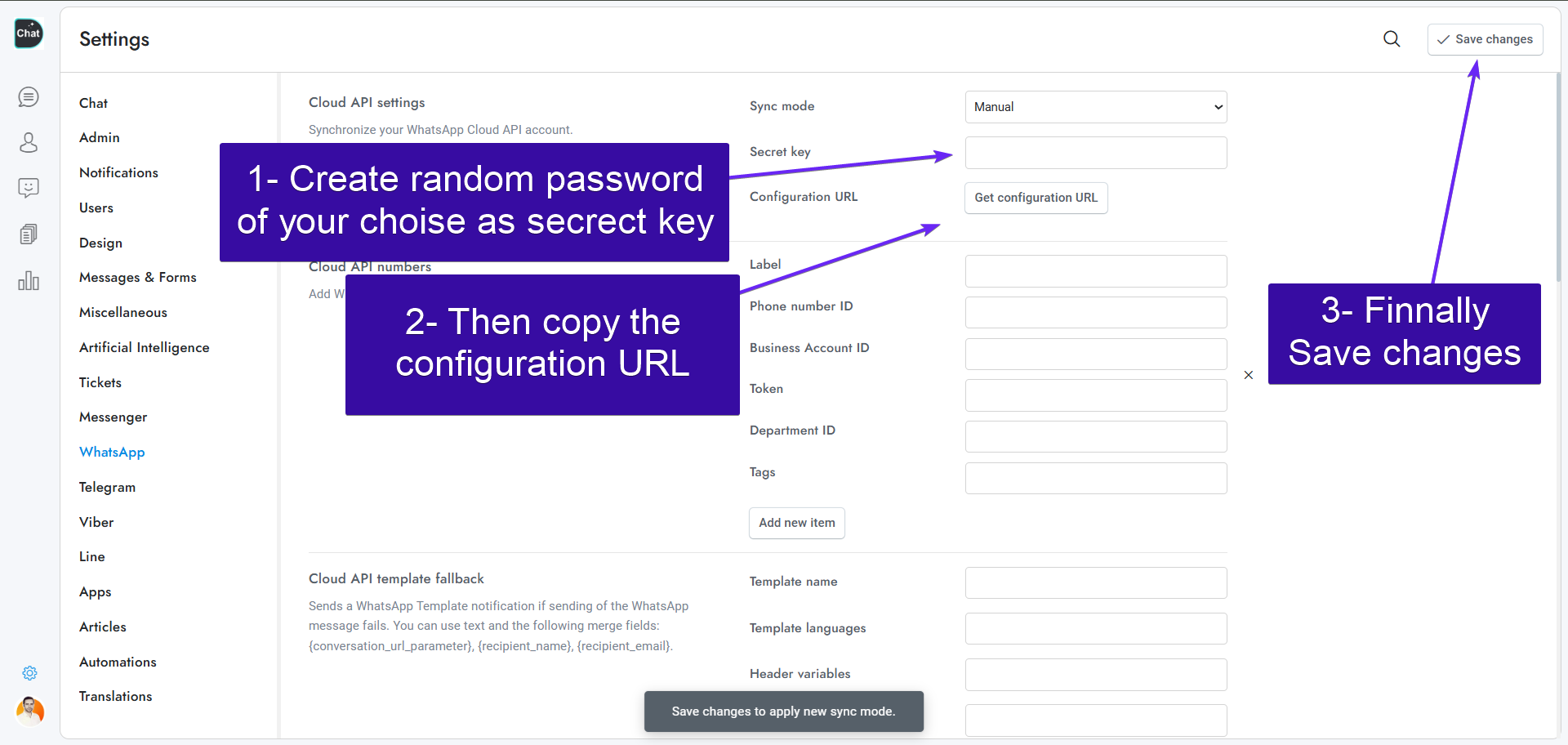
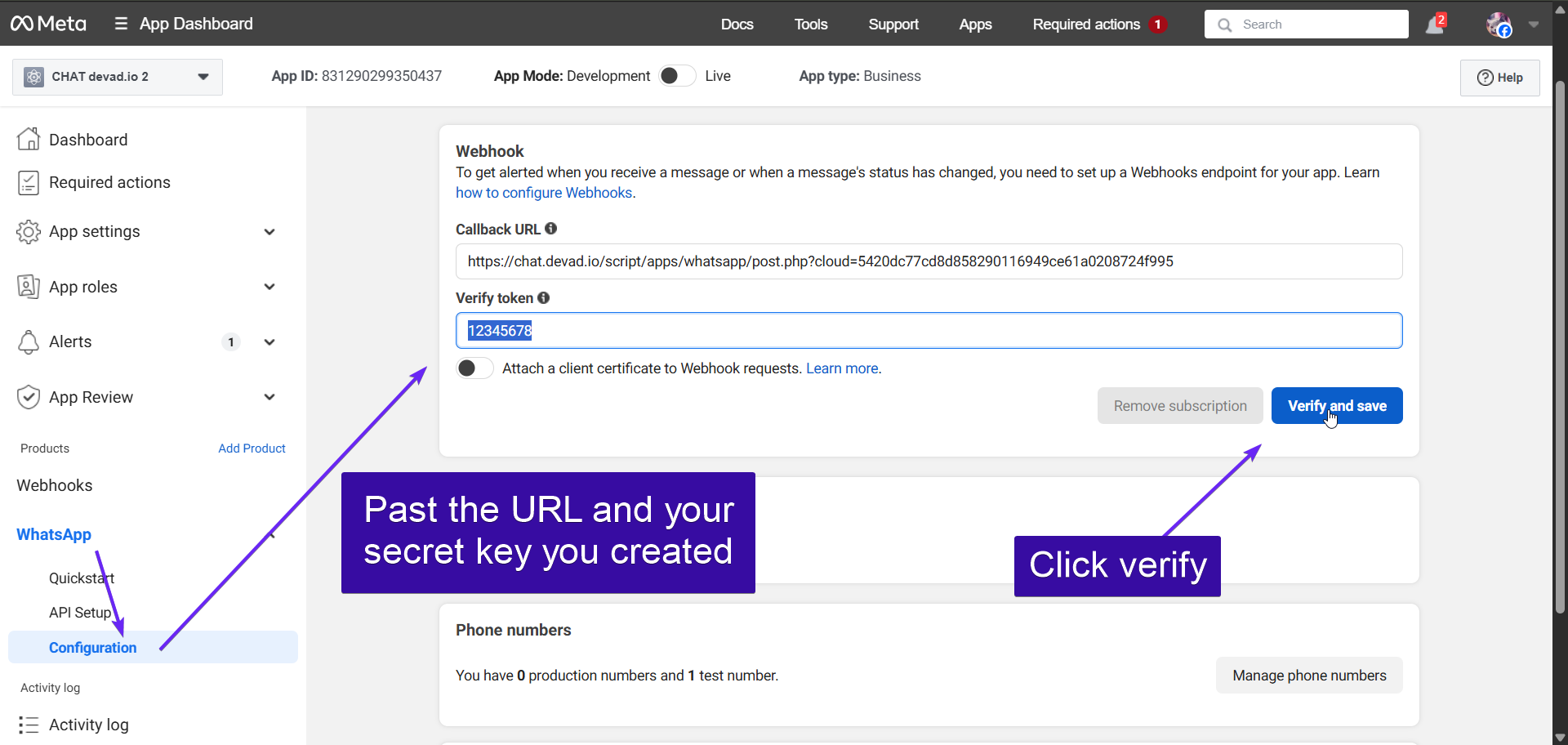
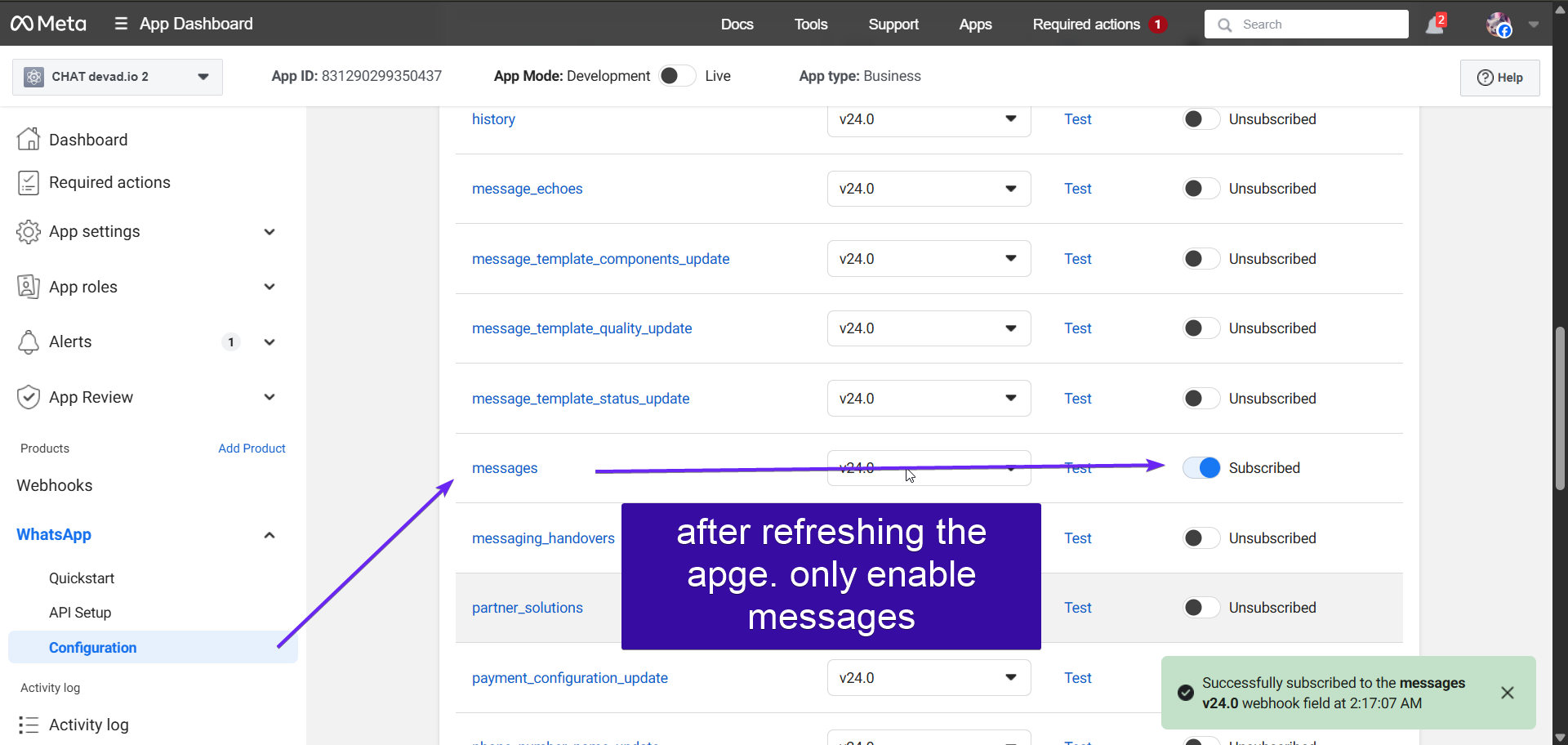
- In CHAT.devad.io > Settings > WhatsApp > Cloud API settings > Secret key enter a random string then go to https://developers.facebook.com/apps and select your app. Click Add product and add WhatsApp, then go to WhatsApp > Configuration and in Webhook URL enter the URL you get from CHAT.devad.io > Settings > WhatsApp > Cloud API > Configuration URL. In Verify token enter the secret key you previously entered in CHAT.devad.io. Click Verify and save, click Webhook fields > Manage, enable the following Webhook fields: messages.
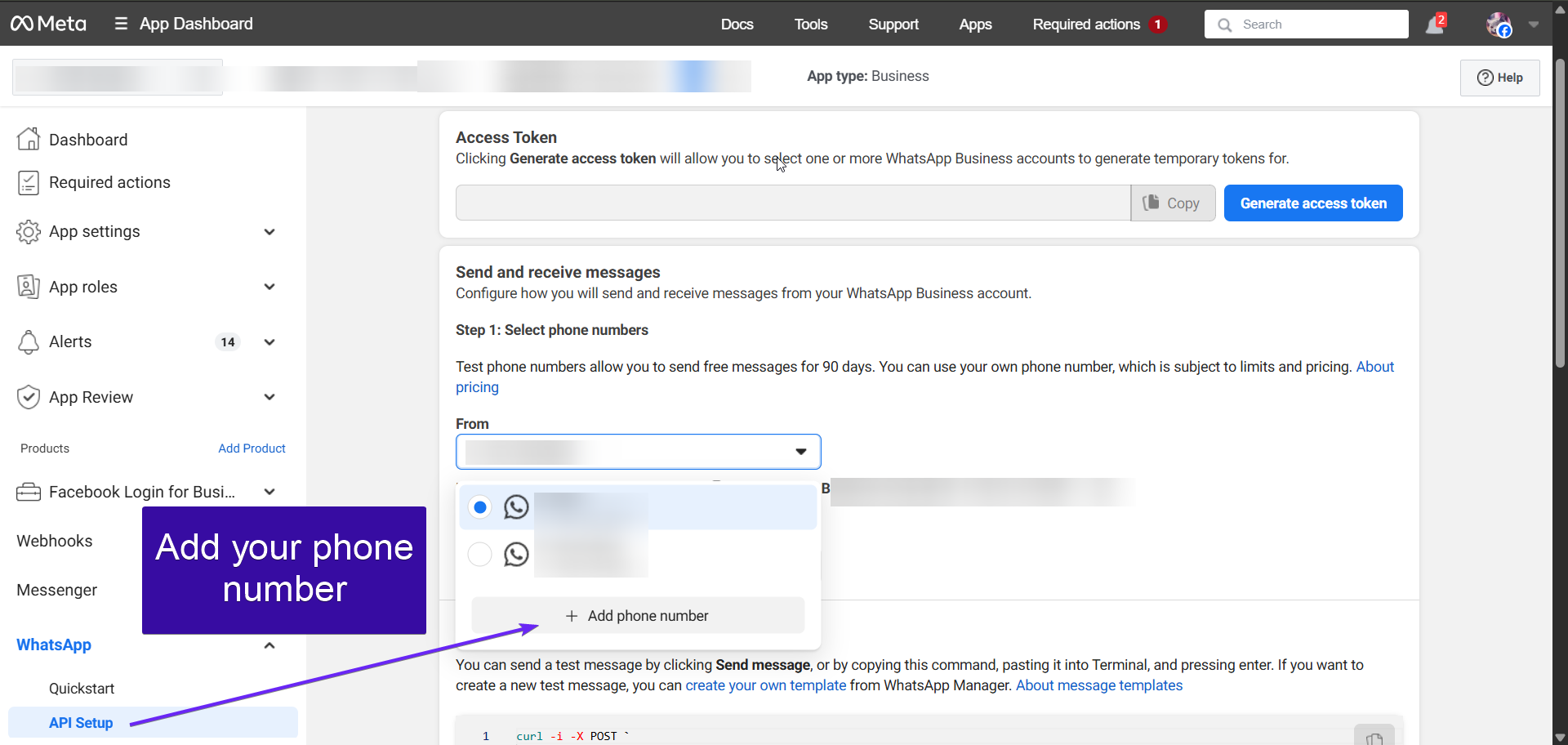
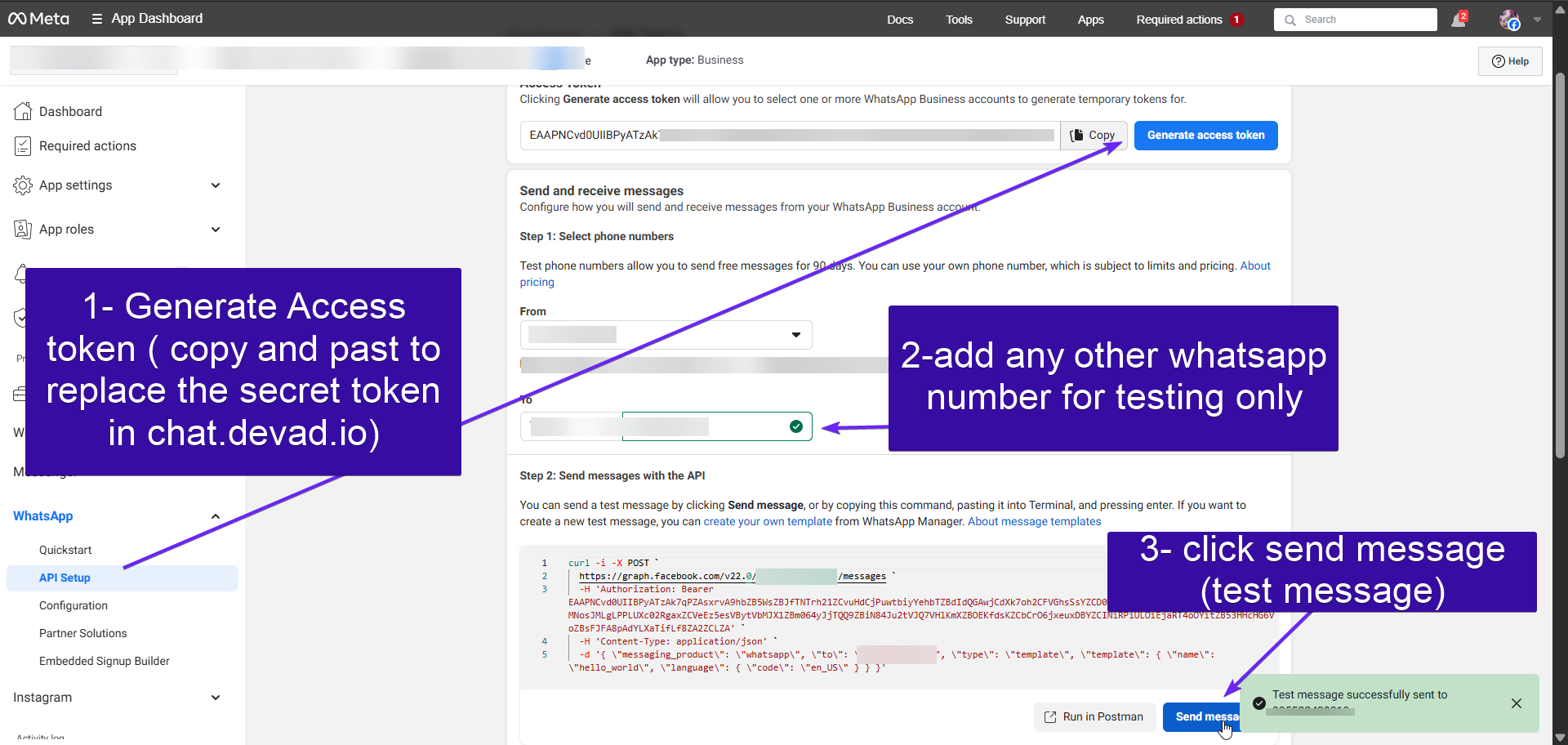
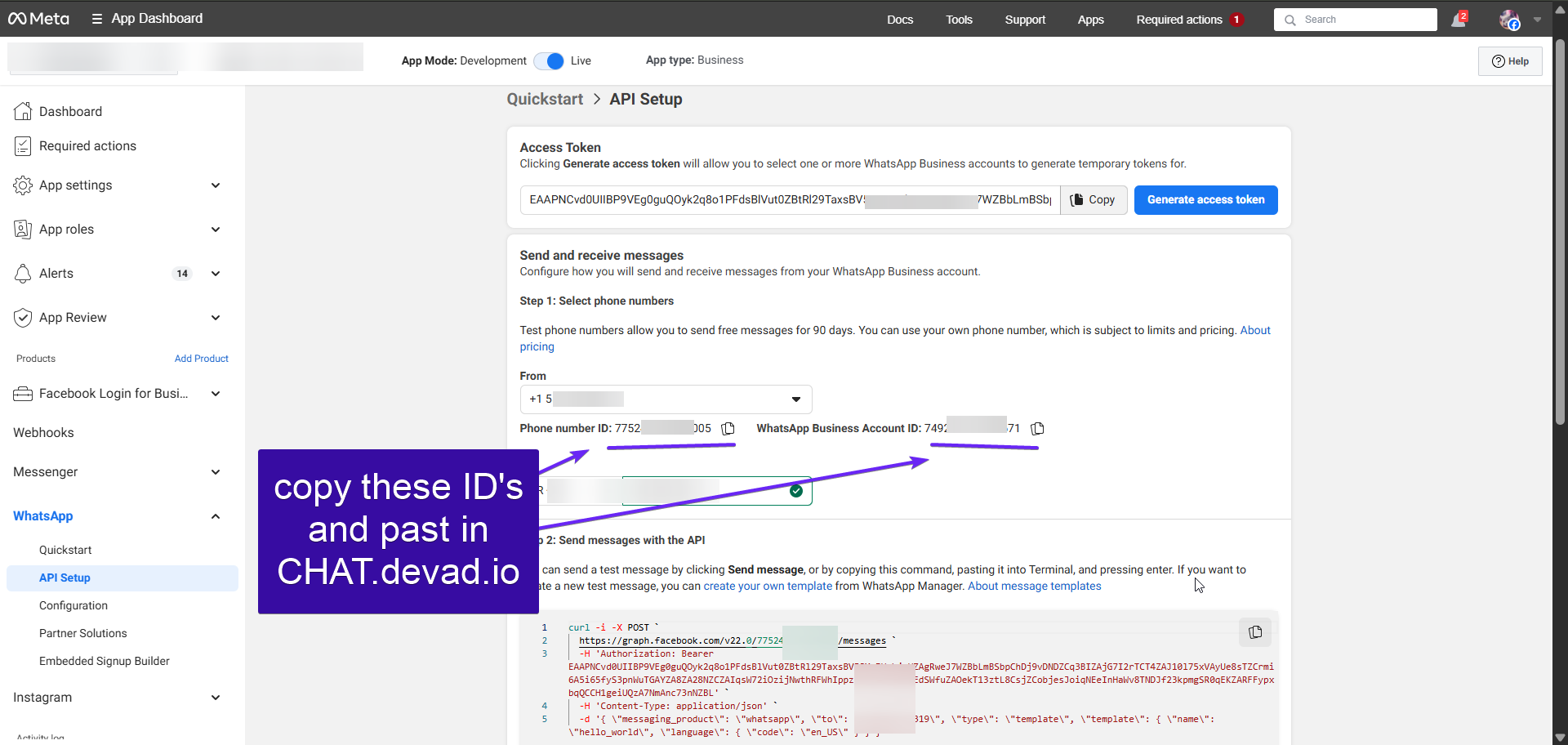
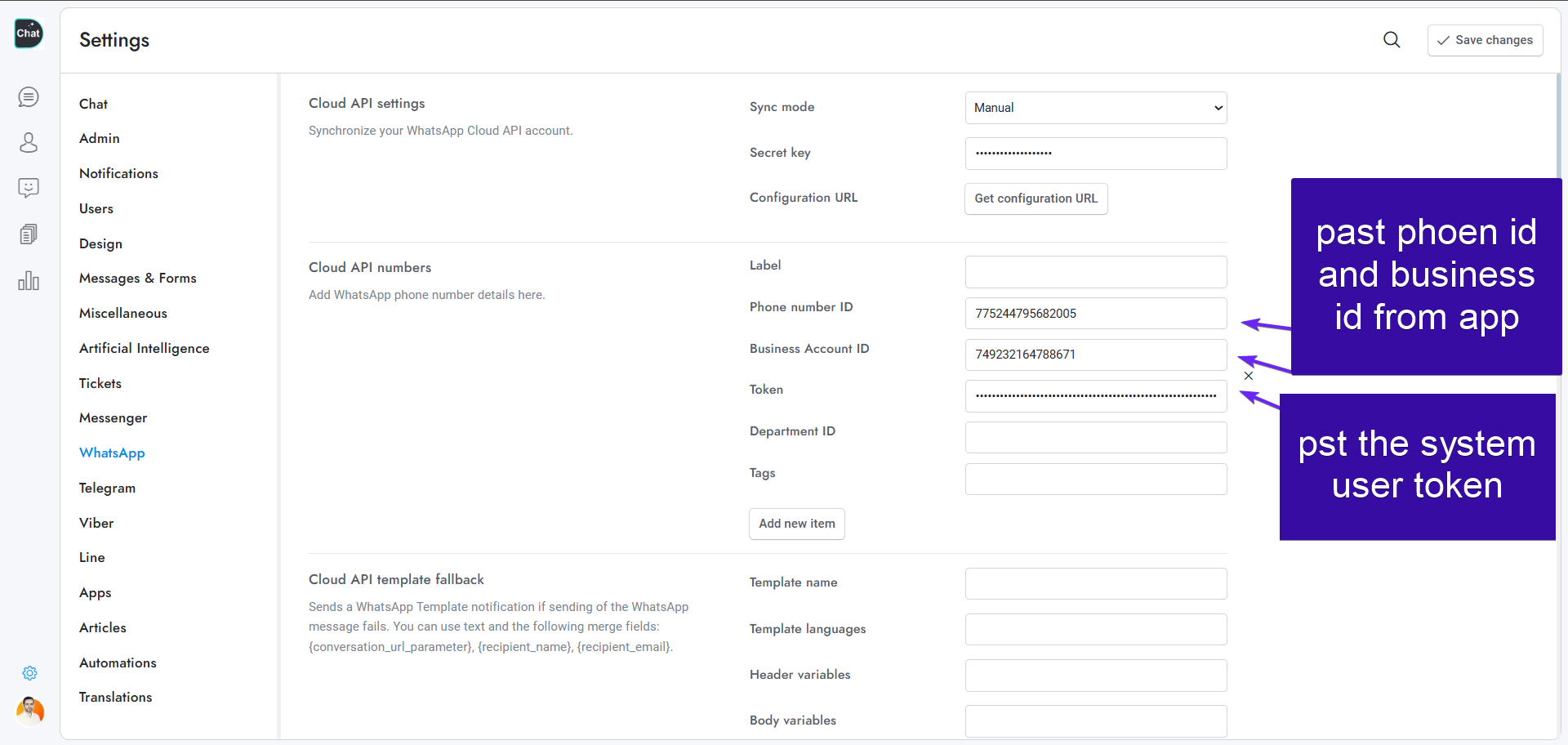
- To verify the integration, simply go to https://developers.facebook.com and select your app. From there, click on “WhatsApp” in the left menu and then select “API Setup”. Copy the Phone number ID and paste it into CHAT.devad.io > Settings > WhatsApp > Cloud API numbers > Phone number ID. Enter the desired phone number in the “To” field, such as your personal WhatsApp number, and send a test message. Check your WhatsApp account and send a reply, which should then appear in CHAT.devad.io. To reply to the test number from CHAT.devad.io, copy the “Temporary access token” and paste it in CHAT.devad.io > Settings > WhatsApp > Cloud API numbers > Token.
- To activate the WhatsApp integration for all phone numbers and add a live phone number, refer to the following guidelines. In CHAT.devad.io > Settings > WhatsApp > Cloud API numbers > Token enter the permanent access token, follow the instructions below for getting it.
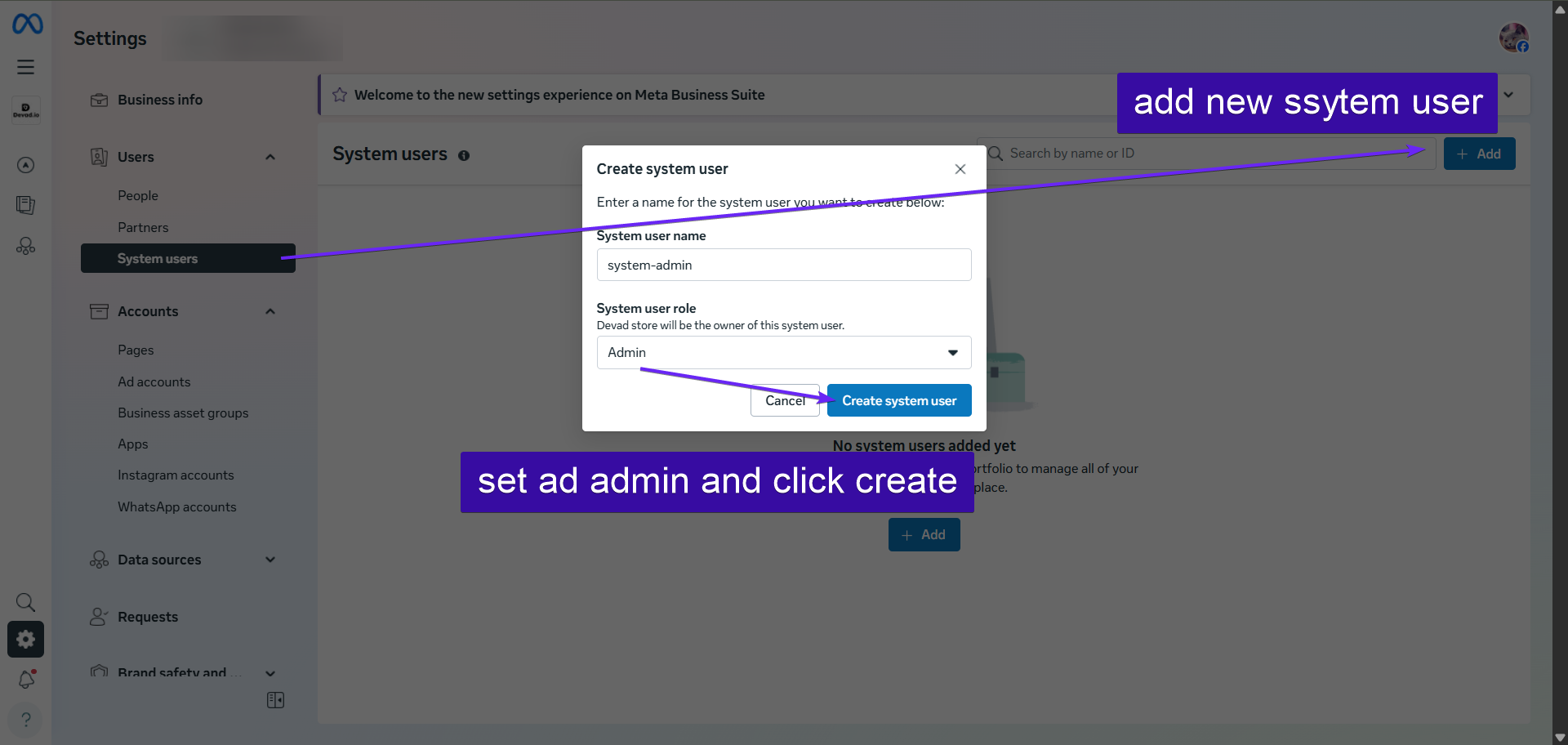
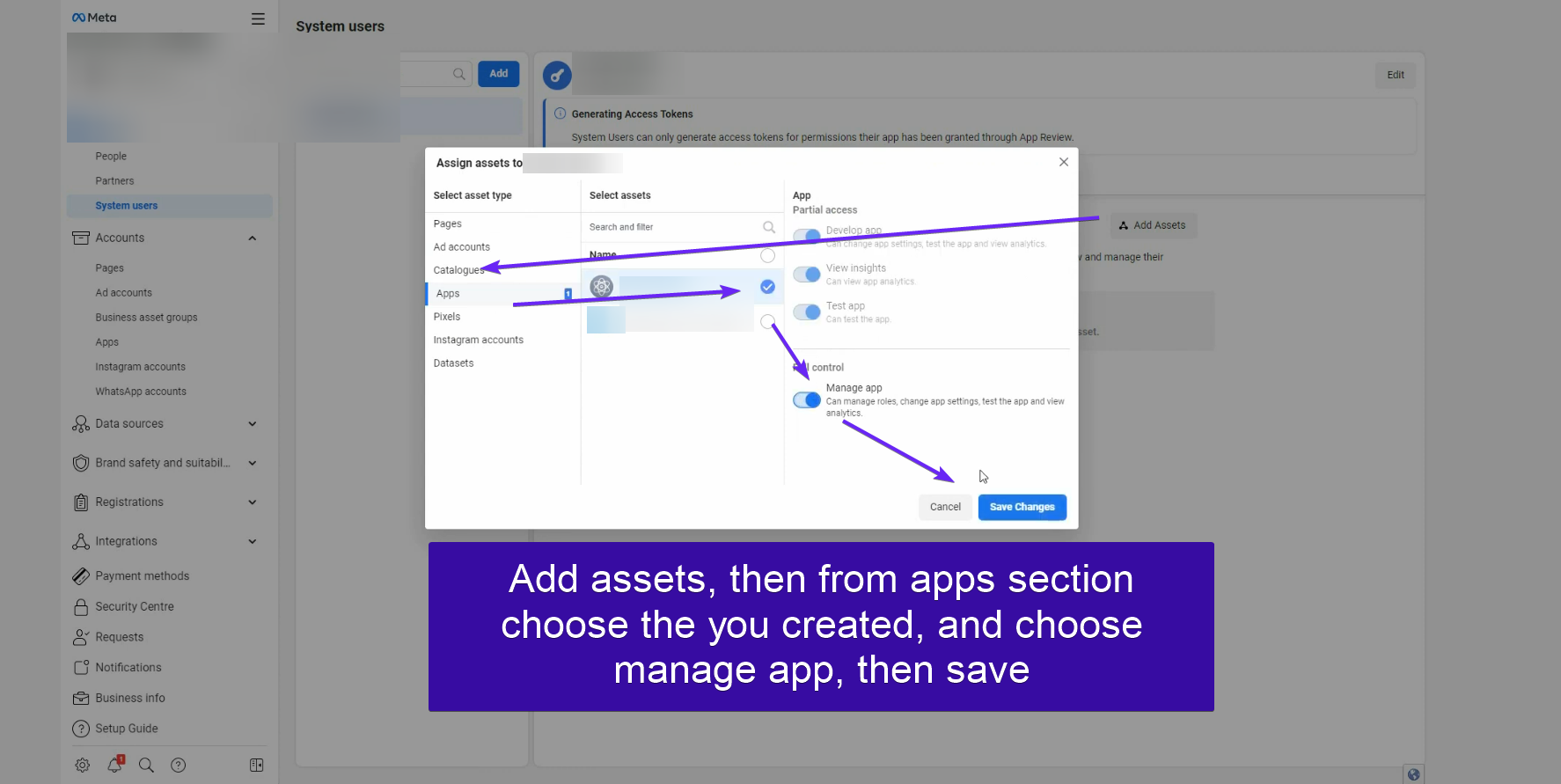
- Visit https://business.facebook.com and go to Left menu > Settings > Business settings, then go to Users > System Users to view your admin system user, or create a new one. Open the user and click Add Assets, then select the app used for the WhatsApp API integration and check Develop App, or Full control. The system user needs to be an admin. If you do not see the option, click Business settings.
- Click Left menu > Account > Apps. Select your app or add it. Make sure the system user is there and has full control. If not, click Add user, select the system user, click Full control, and click Assign.
- Click Left menu > Apps and under Select Assets choose your app, assign Full control and save.
- From Left menu > WhatsApp accounts select the WhatsApp account linked to your appp, then click Assign people and select the System user, grant to it Full control.
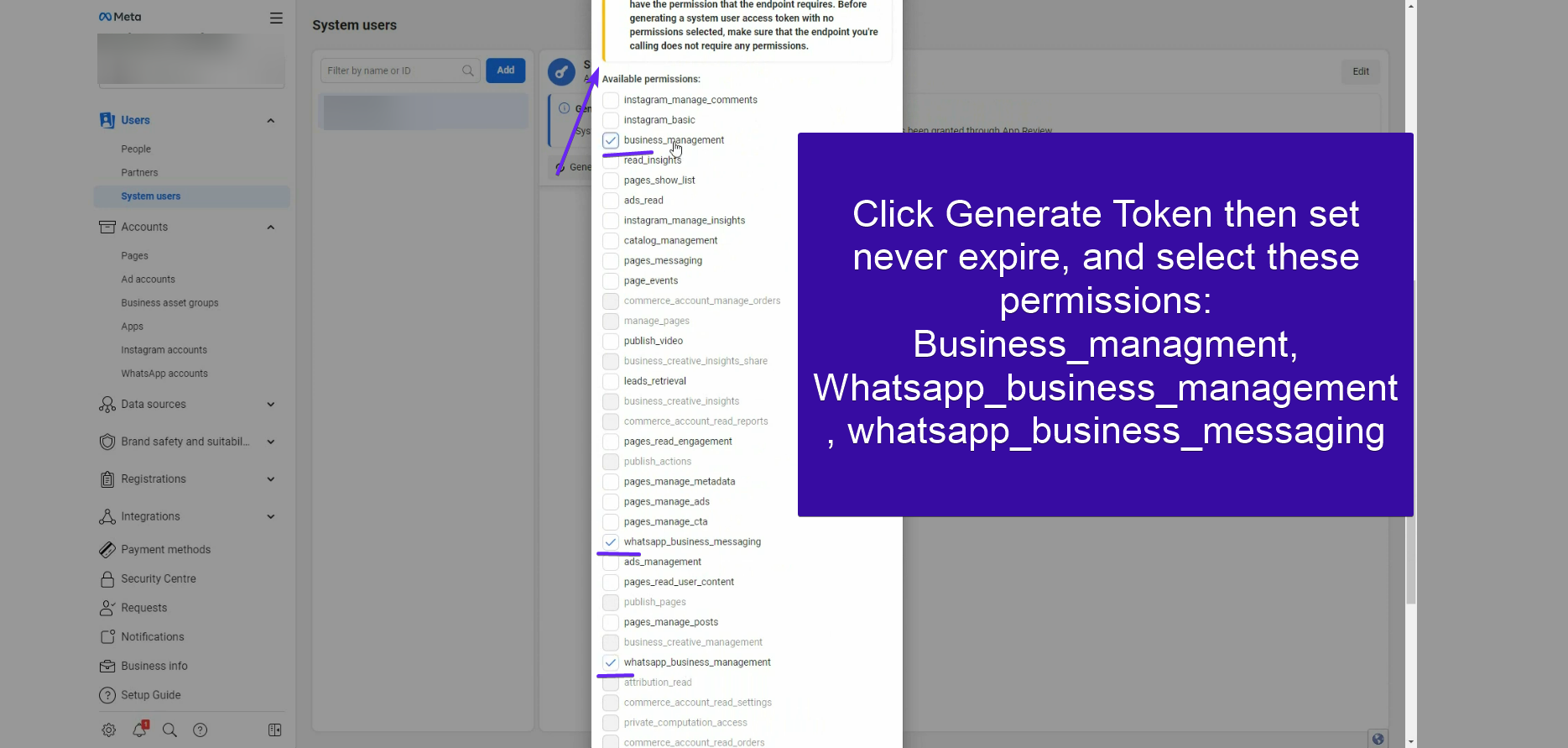
- From Users > System Users select the user you just created and click Generate New Token, click Apps and select the app used for the WhatsApp API integration, set the Token expiration to Never, enable the following permissions: whatsapp_business_management, whatsapp_business_messaging, business_management. Click Generate Token and save. Paste the token in CHAT.devad.io > Settings > WhatsApp > Cloud API numbers > Token.
- After activating the number, copy the Phone number ID and paste it into CHAT.devad.io > Settings > WhatsApp > Cloud API numbers > Phone number ID.
- If the number is in pending status, you need to enter your app dashboard and then from Left menu > WhatsApp > API Setup click Generate access token.
- Please keep in mind that if you use your current WhatsApp business number in CHAT.devad.io, it will no longer be usable with your WhatsApp Business app, and you will need to migrate it following these instructions.
3rd Option: 360dialog
- Go to https://www.360dialog.com/ and create a new account.
- Enter your dashboard and from Left menu > WhatsApp Accounts generate the API key and copy and paste it in https://chat.devad.io/?setting=whatsapp > 360dialog settings.
- Click https://chat.devad.io/?setting=whatsapp > 360dialog settings > Synchronize now.
- Done! CHAT.devad.io should start receiving the WhatsApp messages sent to your number, and you can reply to those messages from CAHT app.
- Note that you can also use the free sandbox account for testing, more details at https://docs.360dialog.com/whatsapp-api/whatsapp-api/sandbox. The sandbox account has limitations and some features, such as media attachments, will not work.
- More Detail about 360dialog Setup visit this page: https://devad.io/guides/chat-devad-io-docs/setting-up-your-360dialog-account/
4th Option: Twilio
- Go to https://www.twilio.com and create a new account.
- Verify your phone number.
- Complete the form and choose WhatsApp, Alerts & Notifications, With no code at all, 3rd party integrations.
- From the Twilio console copy ACCOUNT SID and AUTH TOKEN and paste them into CHAT.devad.io > Settings > WhatsApp > Twilio settings, save the changes.
- You will now set up a free test account to run some tests and make sure the integration works with CHAT . From the left menu click Messaging > Settings > WhatsApp sandbox settings and enter into WHEN A MESSAGE COMES IN and STATUS CALLBACK URL the URL of CHAT, get it from CHAT.devad.io > Settings > WhatsApp > Twilio settings > Get configuration URL. Mind that localhost will not work, you need a public URL and a live server.
- From the left menu click Messaging > Try it out > Send a WhatsApp message. Follow the instructions and send the message with the code to the WhatApp number provided. Click the next buttons until the configuration is complete.
- Done! CHAT.devad.io should start receiving the WhatsApp messages sent to the sandbox account, and you can reply to those messages from the CHAT.devad.io.
- To publicly use the WhatsApp integration with your customers you need also to complete the steps below:
- Update your account and enable billing, you can do that here.
- Purchase a Twilio number, which will be the phone number of your official WhatsApp Business account. More details here. You cannot use the phone number of your existing WhatsApp Business account, you must use a Twilio number. More details here.
- From the Twilio console go to Messaging > Services and create a new Messaging Service. Click Add Senders, select WhatsApp Number as the sender type, and add the Twilio number you purchased. Copy the Service SID and paste it into CHAT.devad.io > Twilio settings > Sender.
- More Detail about Twilio Setup visit this page: https://devad.io/guides/chat-devad-io-docs/how-to-connect-whatsapp-twilio-to-chat-devad-io/
FAQ & Troubleshooting and
Frequently Asked Questions (FAQ)
Q: I signed in, but why can’t I see my WhatsApp number in the CHAT App? A: This usually happens because your WhatsApp Manager is not yet verified or your WhatsApp number has not been approved by Meta. Please wait at least 48 hours and try again. If it is still not approved or verified after this period, please contact Meta Support directly at: https://www.facebook.com/business-support-home/
Q: What are the limitations of using Twilio or 360dialog? A: Both providers have specific constraints, such as Twilio’s 1600-character message limit. For the most stable and feature-rich experience, we highly recommend using the Official WhatsApp Cloud API integration.
Q: Do you provide support for Twilio or 360dialog setups? A: No. We cannot provide technical support for third-party configuration, delivery issues, or platform-specific errors related to Twilio or 360dialog.
Q: Where can I find a complete guide on WhatsApp Business setup? A: You can find our comprehensive guide on creating and maintaining a healthy WhatsApp Business account here: WhatsApp Business Health & Setup Guide.
Q: How do I add new phone numbers or manage existing ones? A: To add new numbers, visit your Meta WhatsApp Manager. If you add a number after the initial setup, you must run the sync process again in CHAT App to import them. To disable specific lines, navigate to Settings > WhatsApp > Cloud API numbers.
Q: What if I don’t receive a verification SMS or call during a re-sync? A: If you are re-syncing an existing number and the code doesn’t arrive, simply enter the last PIN you received. Meta typically accepts the previous PIN for re-connections.
Q: Why am I seeing errors during the sign-up process? A: Most sign-up issues (in both Automatic and Manual modes) are caused by:
- Invalid Phone Number: Virtual or VoIP numbers are often rejected; use a standard mobile number.
- Onboarding Limits: Meta may restrict new accounts until your Business Portfolio is verified.
- Missing Compliance: Ensure your website and legal documents are complete and consistent.
- Permissions: The Facebook account must have Full Admin access to the Meta Business Account.
Q: What does the “Invalid account linking” error mean? A: This is the most common error. It usually indicates that the WhatsApp number or the WhatsApp Manager is unapproved or still pending review by Meta.
Q: What are the verification and approval requirements? A: Both your WhatsApp Manager and the specific phone number must be fully approved and verified to connect. If you encounter status issues, you can alternatively try the “Connect with WhatsApp Business App” method within the integration window.
Q: Is there a way to connect without waiting for Meta’s manual approval? A: Yes. If you prefer not to wait for the official API approval process, use the “Connecting with WhatsApp Business Mobile App” method for a faster setup.
Unofficial WhatsApp API ?
CHAT devad.io only supports the Official WhatsApp Cloud API, 360dialog, or Twilio. Unfortunately, unofficial WhatsApp APIs are not supported. However, you can still implement them using the CHAT.devad.io API and Webhooks. For more details, visit https://chat.devad.io/docs/api/web (SOON we will share api doc). Please be aware that you must possess coding skills as a developer to proceed with this task. Additionally, our default integrations are equipped with advanced features including chatbot support, automated messages, human takeover, WhatsApp rich messages, attachments, and more. Consequently, although setting up a basic integration for sending and receiving text messages is relatively straightforward, ensuring its flawless functionality is a more intricate process.


