
Docs
CHAT Help Center: content types, categories and publishing states
Use the CHAT Help Center to organize documentation, step-by-step guides, blog posts and changelogs. Choose the content type before publishing, then place the entry in a category that matches its topic.
Which content type fits the page?
Choose Document for reference material, Guide for a task, Blog post for an article and Changelog for an update history.
Content type | Use it for | Example |
|---|---|---|
Document | Definitions, settings and reference information | Content types and publishing states |
Guide | An ordered task with an expected result | Create and publish an illustrated article |
Blog post | An explanatory or editorial article | Planning answers for common customer questions |
Changelog | A dated record of features, fixes and improvements | A Help Center documentation update |
How do categories and subcategories work?
A category groups related pages. Select the most specific relevant subcategory when a parent has children. Similar category names can belong to different apps; review the app context instead of choosing by name alone.
For a CHAT page, choose the intended CHAT category. Keep a reference page separate from a product announcement when those pages serve different reader needs. Changing a content type is not a substitute for reviewing its category.
What is the difference between unsaved, draft and published?
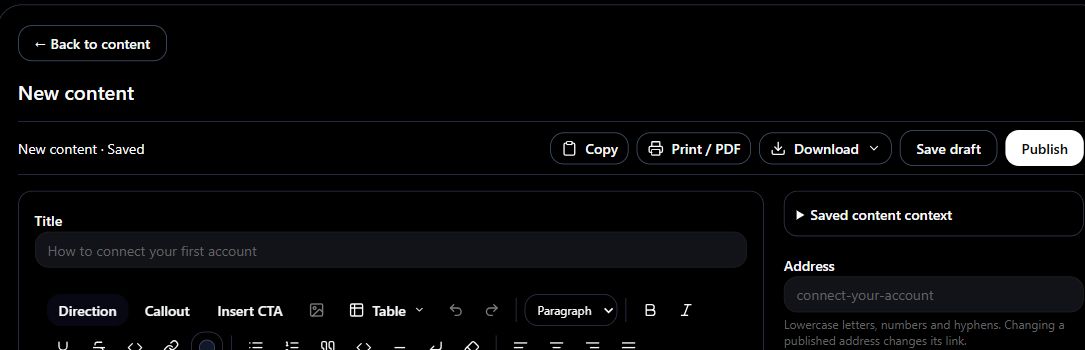
Unsaved changes exist in the editor until a save or publish succeeds. Save draft stores the current entry as a draft. Publish makes the current entry publicly readable.
Review the whole editor before selecting Publish. The action includes current unsaved edits.
Coordinate edits to an existing published page. Save draft removes it from the public Help Center until it is published again.
Confirm the saved result before leaving. An uncertain response is not proof that a write failed.
What happens when I change the address?
The Address field identifies the page using lowercase letters, numbers and hyphens. Changing a published address changes its link. Check existing references before renaming a published page, and test the resulting link afterward.
How do images and language affect a page?
Upload PNG, JPEG, GIF or WebP images using Upload an image. The current editor accepts files up to 5 MB. Select the uploaded item through Insert image, add alternative text that explains the visual and provide a useful caption.
Review the Language field under Article details and SEO. Use an enabled language that matches the actual text. Choosing a language does not translate the article. Remove customer details, credentials and private account information from screenshots before uploading.
What do I check after publication?
Open the published page and confirm the title, content type and category.
Read the page as a visitor. Check headings, table cells, image captions and alternative text.
Follow the page's links and confirm that the intended reader can open them.
Check the saved entry again before correcting a failed or uncertain operation.
Publication of a page does not by itself confirm that a chatbot has indexed it. Review chatbot readiness separately when the page is intended to supply answers.