
Docs
Understand Website Sync availability and CMS settings
Availability depends on your workspace, role and provider connection. Use only controls enabled in your account; a visible example does not establish that a provider action is available.
How are Website Sync requests counted?
Read the current owning-account allowance and approved budget before a store request. The documented default includes 15 store API requests per UTC day across all workspaces owned by the tenant, resetting at 00:00 UTC. It counts dispatched requests, not imported products. Additional prepaid blocks default to $0.10 for 1,000 requests; this is not a monthly allowance or a current customer quote. Published rate overrides and the current confirmation govern. Extra pages, tests and actual retries can consume requests; check the existing attempt before retrying an unknown result. See service rates and accounting boundaries.
Where does Website Sync belong?
When available in your workspace, Website Sync is in CHAT Channels, with a separate form for each CMS.
Open Channels. Select your CMS below Website Sync. Do not follow old chat.devad.io installation instructions for this new interface.
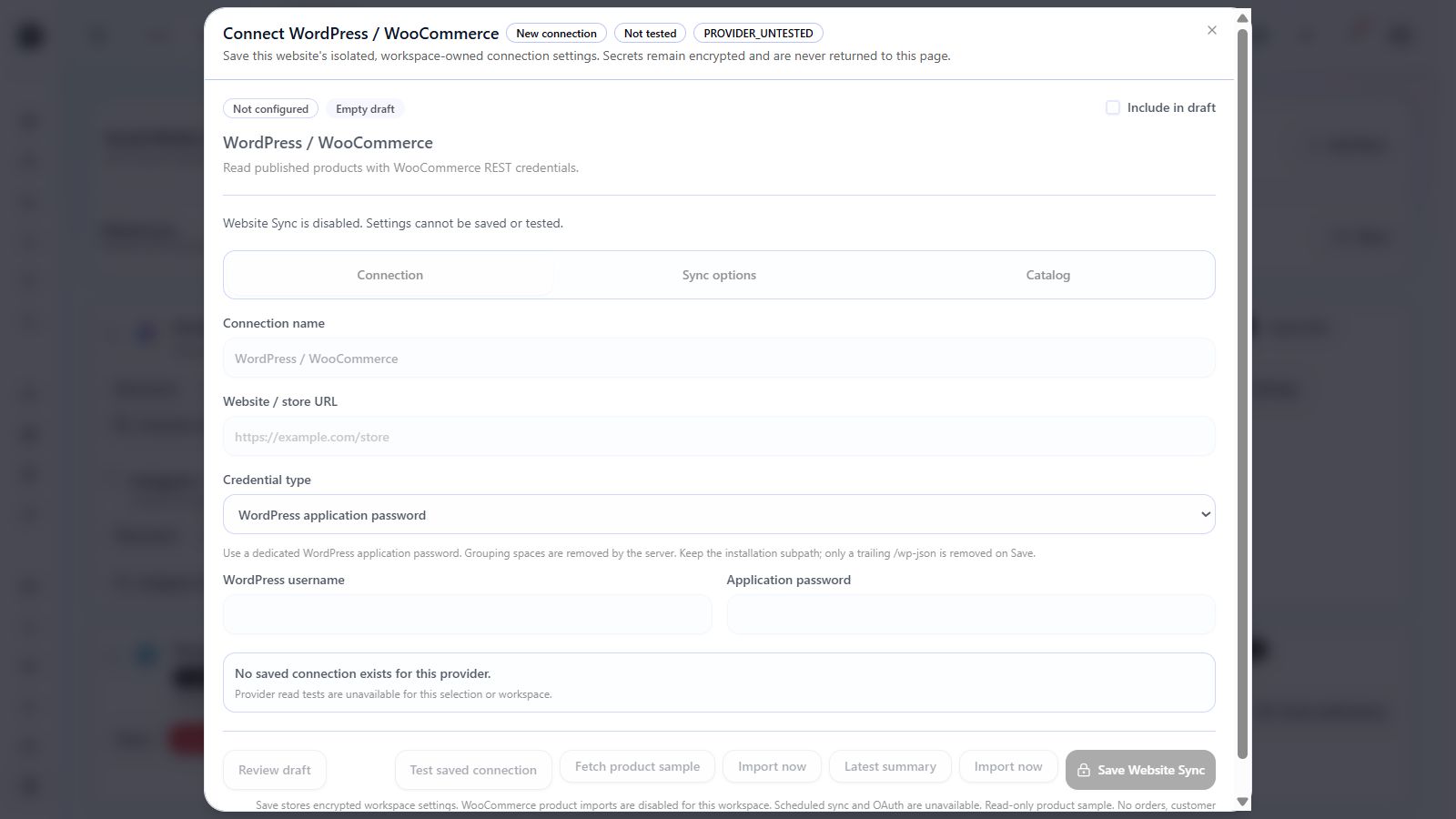
This earlier workspace view shows disabled controls; it does not establish that your current workspace is disabled or that a newer workflow is live.
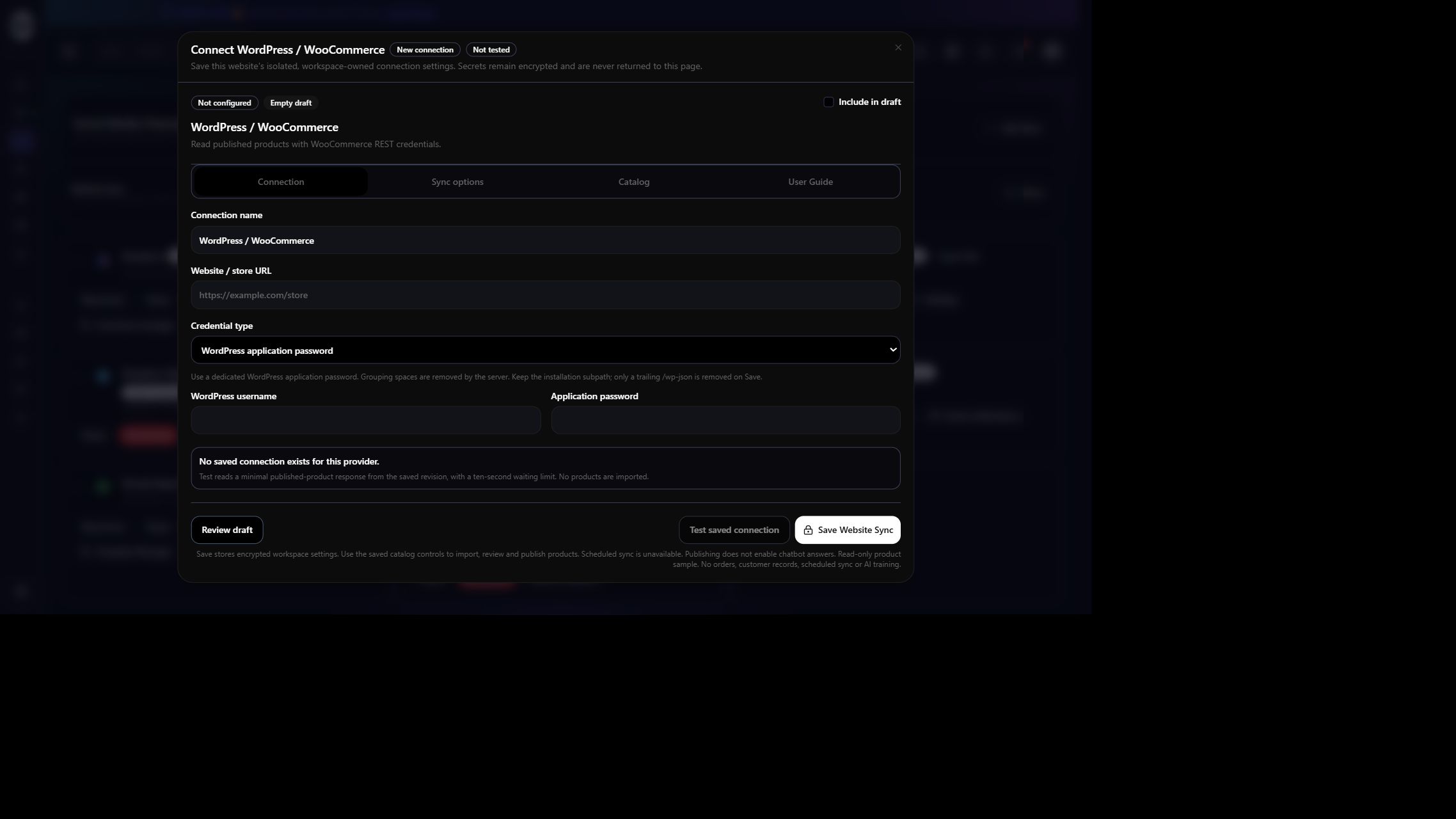
4 November2026: the current Connection, Sync options, Catalog and User Guide sections for WordPress/WooCommerce. This is an empty setup, not a saved or tested connection. The older disabled image above is historical.
Which CMS connections are listed?
The connection selector lists seven types, but a visible type does not mean its import is enabled.
| Type | Select this label | Access preparation |
|---|---|---|
| WordPress / WooCommerce | WordPress / WooCommerce | Dedicated application password or WooCommerce credentials, as the native form requests |
| Shopify | Shopify | Store-specific API access; verify exact form and scopes |
| OpenCart | OpenCart | OpenCart 3 public catalog; check exporter, workspace access and release availability |
| Magento | Magento 2 / Adobe Commerce | Store-specific integration access |
| Salla | Salla | Merchant-authorized connection; do not assume OAuth is active |
| Zid | Zid.sa | Merchant-authorized connection; verify the selected store |
| CSV | Manual CSV | Reviewed public-product file using the enabled native schema; customer and order imports are separate |
A listed connection type does not guarantee that every dataset or import is available for your provider and workspace. Never send an owner password or copy a credential spreadsheet into a public guide. In Salla Devad App mode, when available, finishing the connection requires a verified Devad email matching the Salla user who authorized that installation. Confirm the intended store and current availability first; this condition is specific to that mode, not proof of store ownership or a rule for every Salla connection. The available interface also distinguishes a connected app's token refresh from manually updating an expired token.
What did the earlier WordPress modal show?
The 20 October workspace capture showed WordPress saving, testing, product samples and imports disabled.
The modal shows Not configured, Empty draft, Not tested and PROVIDER_UNTESTED. It says Website Sync is disabled. Save Website Sync, Test saved connection, Fetch product sample and Import now are disabled.
Do not retry by changing billing, feature flags, roles or credentials. Ask support to check workspace availability.
Where is the newer built-in guide?
Where the updated connection form is available, User Guide appears alongside Connection, Sync options and Catalog.
The older screenshot shows three tabs and predates that source change. A tab in source does not establish that the updated interface is deployed or that the selected provider is connected. Confirm the actual workspace version and use the available provider instructions. The desired Settings / Guide layout should not be assumed to match the current source labels.
What do the sync actions mean?
Saving credentials, reading a product sample and importing products are different operations.
| Action | Meaning | Does not prove |
|---|---|---|
| Save Website Sync | Stores this connection's settings | Successful provider authentication or an import |
| Test saved connection | Checks the saved provider connection when enabled | All datasets or scheduled jobs work |
| Fetch product sample | Reads a bounded WooCommerce sample and saves a new connection revision on success in the documented workflow | A full catalog import or continuity of an older published run |
| Catalog: Import store products | Starts an enabled product-catalog run after its prerequisites | Orders, customers, scheduled sync or AI training |
| Import now in a non-catalog state | Shown disabled in the documented workflow | A runnable import |
| Latest summary | Reads the latest native result when enabled | A new successful run |
For Shopify, WooCommerce and OpenCart, the catalog panel requires a supported provider with product imports enabled, a saved connection with credentials configured, Products selected and no unsaved provider settings. If you have unsaved changes, review them and the recovery steps below before saving or discarding: a save can advance the connection revision and affect visibility of a previously published catalog. An active request, an uncertain result or a queued or running import can disable the import action. Use Reload imports to check an uncertain result. Check the actual availability and saved connection in your workspace before proceeding.
Before using Fetch product sample for WooCommerce, plan catalog continuity. When the sample fetch succeeds, the connection revision advances; a run published under the previous revision is not returned as active for the new one. Check the saved connection and catalog after the request. Test saved connection is a separate read test.
The inspected footer explicitly excludes orders, customer records, scheduled sync and AI training for the current product sample path. Read the actual summary before using imported facts in replies.
What if connection settings changed or a save is uncertain?
Check the existing connection's saved revision before testing or repeating the save.
The available interface warns when another session changes saved settings while this provider has a local draft. It keeps that draft at its original revision and directs you to Reload saved settings on the existing connection before testing or retrying a save. If a request times out or you stop waiting, the server may still finish; check the saved result first.
Before reloading, preserve any needed non-secret draft details in an approved private place. A successful reload replaces the local draft with the saved settings and leaves credential fields blank; do not paste credentials into notes, screenshots or support messages. Compare the saved revision and values, then reapply only intended changes and test when authorized.
For an existing connection with a configured credential and unchanged identity, saving retains omitted saved credential values; a blank field is not proof that no credential exists. A changed website or provider identity must satisfy the new identity's credential requirements. Managed authorization methods have their own rules. Never expose a secret to check whether it exists.
In the connection manager, when available, a successful save creates a new revision even when settings are unchanged, and clears the connection's previous verification time and product-sample evidence. The save itself makes no provider request. Check the resulting saved connection and perform its authorized read test again before relying on the new revision; this does not by itself describe the state of a separately published catalog.
How does a manual product catalog become usable?
Test the saved connection, stage and review the complete catalog, then publish it as a separate action when the workspace supports those steps.
- Choose the correct store and credential method. If a matching saved connection remains correct, reuse it without resaving. For a new or changed connection, plan continuity and save only the intended authorized settings. Use Test saved connection when needed and authorized; it is separate from Fetch product sample and does not establish a full catalog.
- Open Catalog and start the offered manual import. For manual CSV, use its upload and staging control. Wait for a complete result and review accepted and rejected records, variants, currency and unknown values.
- Publish only an approved complete preview; reload and confirm the active catalog. Choose the current approved source in the chatbot or Playground where supported and check a known product and an unknown fact.
- If only product data changed and the saved connection remains correct, stage and review a new import using that connection; do not save settings merely to refresh products. If connection settings or credentials need a change, plan the effect before saving and testing the new revision. The active catalog is selected only for the current connection revision, so an older published run is not returned as the new revision's active catalog. A failed or cancelled replacement within the same revision does not itself replace its active catalog. Verify actual continuity; use Resume only when the saved run offers it.
- Use Withdraw catalog and verify the active state when those facts should no longer answer customers. Withdrawing the published catalog, disconnecting its source and uninstalling a provider app are separate actions; review each intended effect before acting.
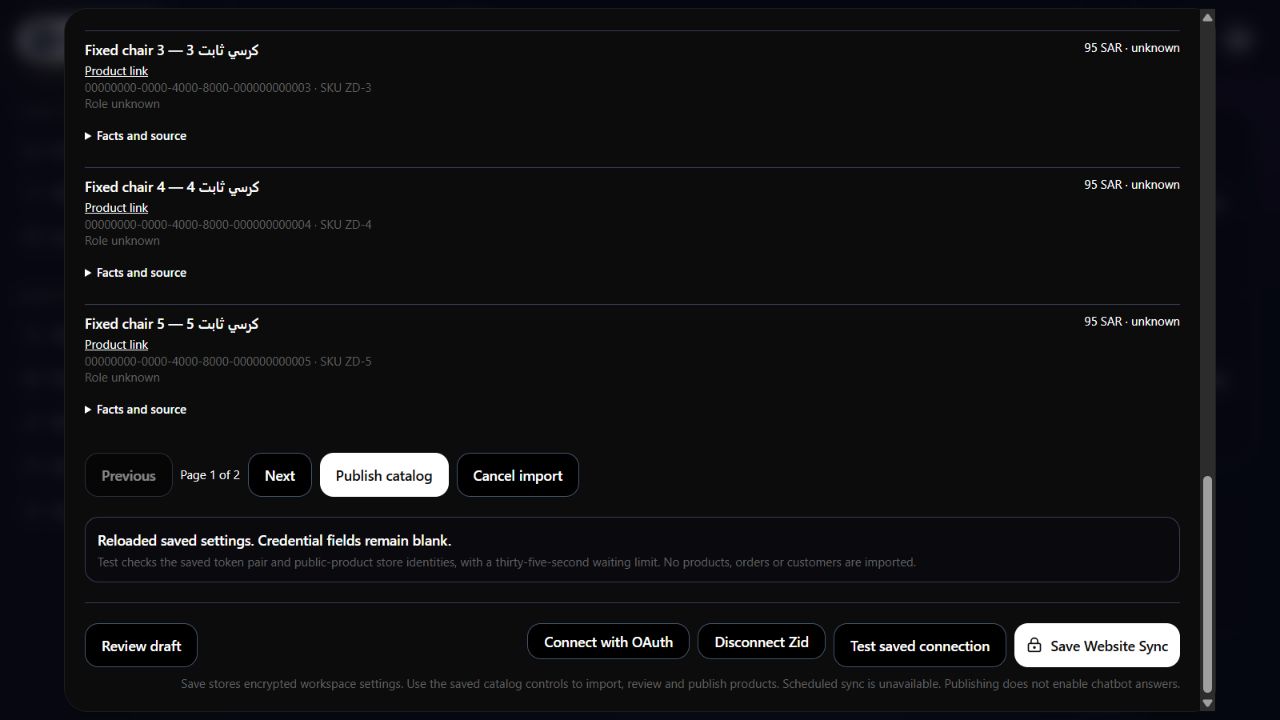
Local synthetic capture from 27 October 2026. The product names and prices are examples, not store quotes. The image shows part of a staged catalog and the publish control; it does not prove publication, current product facts or a live provider connection.
For Salla or Zid, read the disconnect confirmation before proceeding. The confirmation states confirming clears this connection’s merchant tokens and revokes its current catalog evidence; it keeps the app registration and does not uninstall the app at the provider. Select Keep connected to cancel. Availability and provider-side state remain unverified; do not disconnect a working store merely to test the guide.
When the documented workflow is available, publication requires a staged catalog with at least one accepted record, no rejected records and a matching complete record count. Store imports also require complete verified store scope. When a staged catalog is newly published, prior published runs for that connection and source type are marked superseded; this is different from deleting their records. Review the exact run and impact before publishing. Check the actual saved result after any authorized publication or restore.
If an import, publish or withdrawal response is unconfirmed, use Reload imports for the selected saved connection and review the relevant run. Use Refresh progress when offered, then resume only when the saved run permits it. This is separate from Reload saved settings above: import reload refreshes history and closes the current preview. An empty history alone does not prove a delayed server operation failed; establish the result before starting another action. The import history shows up to ten runs for the selected connection's current revision. Older-revision runs can be absent from this view; absence here is not proof that their records were deleted.
The documented workflow treats automatic daily/weekly sync as a separate gate; a saved schedule preference is not proof that an automatic worker is running. Private customer and order access, current provider support and deployment need independent confirmation. See the Shopify, WordPress/WooCommerce and OpenCart 3 guides for their distinct credential requirements and limitations.
What does Store API request attempts count?
It counts recorded store-request attempts for the selected import, not products or charges. If the counter is available in your workspace, open a saved import's progress and read Store API request attempts. Expand About this count for its explanation. One request can return multiple products; failed attempts are included.
Not recorded means a count is unavailable. Earlier requests not recorded means the displayed count is incomplete for that import's history. Neither label establishes zero requests. Use the existing Refresh progress or Reload imports controls to inspect the saved run; do not start a second import merely to obtain a counter.
This progress explanation was traced through the mounted panel, saved catalog response and request-attempt recording on 3 November 2026. It does not establish a live provider request, current billing or production availability. The historical images in this guide do not show this new counter.
How do I read the catalog fact status?
Check the displayed fact status and its timestamps before using product values in an answer.
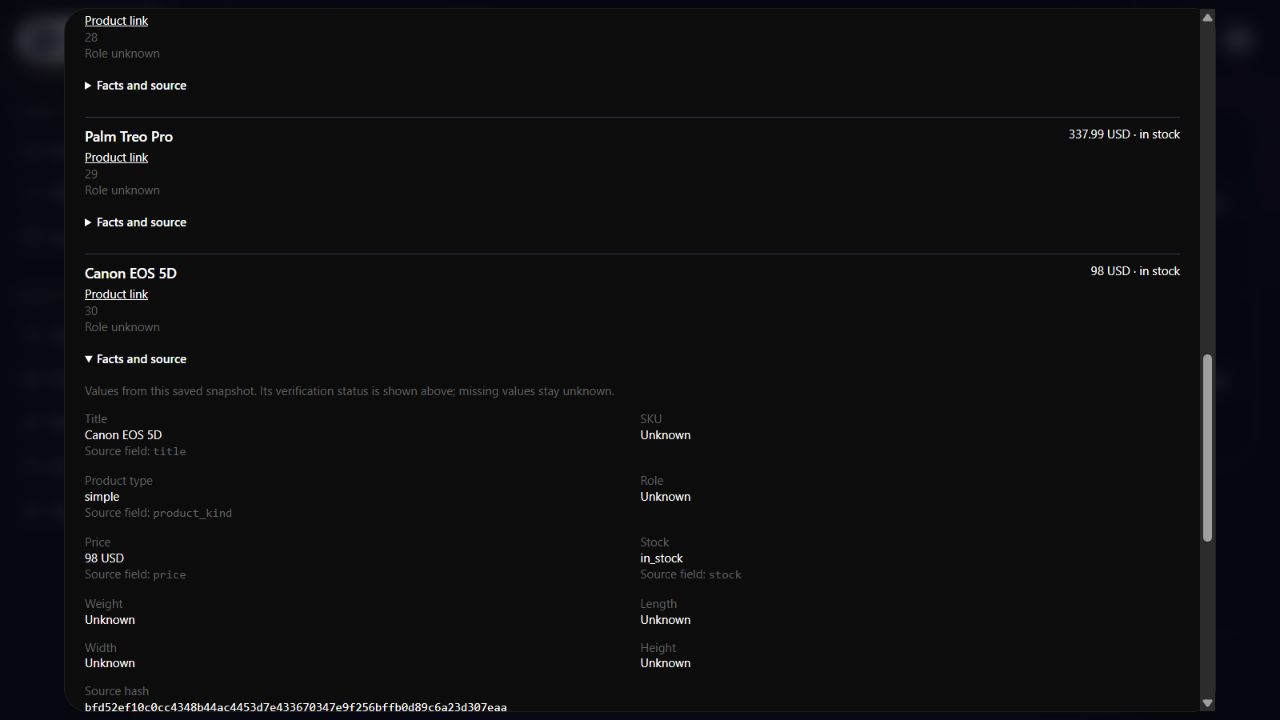
The 27 October local demo shows an expanded Facts and source section, including unknown fields and example product values. The fact-status label is outside this crop; the image does not prove current prices, stock or chatbot availability.
| Status in the available interface | Meaning for review |
|---|---|
| Current verified snapshot | Displayed records passed verification when loaded; inspection alone does not enable chatbot answers. |
| Snapshot expired | The saved values have expired; import and verify fresh store data before using them in answers. |
| Saved snapshot only | Values are for review and are not an active verified answer source. |
| Current facts unavailable | Verification could not be confirmed; reload imports and check the connection and source. |
The panel shows observed, verified, published and expiry times when available. Open Facts and source on a record when offered to inspect supported values; missing facts remain unknown. These labels do not establish a live catalog, provider accuracy or a successful chatbot response.
How do I review a manual product CSV?
Save the product connection, upload and review the CSV, then publish only the approved complete catalog.
The documented workflow supports a product-file workflow when the workspace has product imports enabled. The connection's Safe file references setting records a file name or label; it does not itself upload a file. Likewise, choosing CSV URLs only validates the entered addresses locally in the reviewed form; it does not fetch them.
- Confirm the intended workspace, permission and an approved public-product data source. In Channels → Website Sync, select Manual CSV, choose Safe file references, select Products, review the requested label and schema settings, then save the connection. Do not put a local path, customer record, order data or secret in the reference label.
- Open Catalog for that saved upload-mode connection. Expand CSV format and template and choose Download CSV template. Prepare a UTF-8 CSV using the supported headers and your approved product facts.
- In the supported import schema,
product_idandtitleare required; a price requires a currency. Files are limited to 2 MiB, 2,000 data rows and 16 columns. A variant must include its parent product row in the same file. Missing facts remain unknown. Confirm current workspace limits before use. - Under Product CSV, choose the intended
.csvfile and select Upload and preview. Review accepted and rejected counts, the displayed rows, identifiers, prices, currency and missing values. The available interface says an import with rejected or missing rows cannot be published; correct the source and start the appropriate new import after reviewing its state. - Once the complete preview and intended audience are approved, select Publish catalog and confirm the displayed active state. Uploading or previewing alone does not publish. If a result is uncertain, reload saved imports and inspect the existing attempt before trying again.
For illustration, the smallest header is product_id,title; an example row
could be P-001,Desk. The product identifier and name must come from your own
approved source. Do not infer a price, stock, relationship or compatibility
from an absent field. Catalog publication is separate from customer or order
imports, automatic scheduling and activating a chatbot.
Prepare advanced CSV products and variants
A variant needs its own verified facts and a parent row in the same complete import. Do not infer a variant's price, availability or option combinations from its parent.
The CSV importer accepts UTF-8 CSV up to 2 MiB and 2,000 nonblank data rows. Headers must be unique and supported, with at most 16 columns per file. There are 17 allowed header names, so choose the subset needed; do not paste all 17 into one file.
| Purpose | Supported headers | Rules |
|---|---|---|
| Required identity | product_id, title |
Stable genuine ID and nonempty product name |
| Variant identity | parent_id, variant_id |
Parent row has empty variant/parent fields. Variant uses the same product_id as its parent, a distinct variant_id, and an optional parent_id equal to product_id |
| Public facts | sku, url, price, currency, stock, category |
Price requires a three-letter uppercase currency. Stock is in_stock, out_of_stock, backorder or unknown; blank remains unknown |
| Attributes | weight_kg, folded_dimensions_cm, language |
Use the supported format shown by the importer; leave unverified attributes empty |
| Product relationship | product_role, related_product_id, relation_type |
Roles are device, accessory, part, unclassified. Supply both relationship fields together; use a supported genuine relationship, never inferred compatibility |
| Variant choices | variant_options |
JSON list of up to ten objects with only name and value; only on a variant. Names must be distinct and values real, nonempty choices |
Supported relation types are accessory_for, part_for and compatible_with. Accessory/part relations must match the corresponding role. A relationship must not point back to that row's own product or variant. These describe public product facts, not authority to read or change private orders.
Example: one parent and one real variant
This synthetic illustration is not a file to upload unchanged. Replace every fact with approved store data. It uses seven columns and explicitly quotes the JSON cell using CSV's doubled quotation marks.
product_id,variant_id,title,price,currency,stock,variant_options
DEMO-DESK,,Demo desk,100.00,USD,in_stock,
DEMO-DESK,DEMO-DESK-OAK,Demo desk - oak,125.00,USD,out_of_stock,"[{""name"":""Finish"",""value"":""Oak""}]"
The variant keeps DEMO-DESK as its product ID; do not put the parent ID into a different product row and expect automatic matching. Its out-of-stock state and 125.00 price belong to that variant. An empty variant price/stock is unknown, not permission to borrow the parent's values. A parent plus options does not authorize inventing every possible combination.
Review the complete snapshot and retained history
- Stage the approved file using the manual CSV procedure above. Review all accepted/rejected rows and the complete preview, not only the first sample.
- Resolve duplicate
(product_id, variant_id)identities, absent parent rows, inconsistent row widths, malformed JSON, invalid currency/stock and unsupported relationships in the source file. A record's displayed row number refers to its logical CSV record. Do not discard a rejected product merely to make an incomplete catalog publishable. - If a replacement import fails or is cancelled, inspect its saved run before retrying. The previous published catalog remains unchanged; a newly staged generation does not replace it by itself. Use Retry or Resume import only when the saved run offers that action.
- After the complete preview is approved, publish the intended generation and reload its saved active state. Then review which catalog/source the chatbot or Playground actually selects and test known products, real variants and missing facts.
- To stop using a published catalog, select Withdraw catalog, review the named generation and select Confirm withdrawal. Keep published cancels that confirmation. Reload and verify the active state. The saved import remains in history; its presence does not mean products are still published. Withdrawal is separate from deleting retained history or uninstalling a provider app.
Provider setup and recovery index
Use the provider-specific instructions below after checking your workspace offers that connector. They reproduce the useful setup and recovery guidance from the current native User Guide, with each provider's limits kept separate. They do not prove that your store is connected, that every provider is qualified for your deployment, or that automatic schedules are active.
WordPress / WooCommerce
Import published public products from the selected store. Private orders, customer records and scheduled imports are separate features.
Prepare the store
- Ask a store administrator for the canonical HTTPS storefront address. Include the installation path if WordPress is installed in a subfolder.
- Use a dedicated read-only credential. For WordPress, create an application password for an account permitted to read the required products. For WooCommerce, create a consumer key and matching consumer secret with Read access. Do not use your ordinary WordPress password.
Save the connection
- Enter a descriptive connection name and the store URL. Choose the matching authentication method.
- For an application password, enter the WordPress username and application password. For a consumer key, enter the consumer key and its matching consumer secret.
- Save Website Sync, then select Test saved connection. A passing sample is not a completed import. Credentials stay encrypted and are not shown again on reload.
Recovery
- 401 or 403: check the exact credential method, permissions and installation URL. Replace a revoked credential on the same connection, save, and retest.
- HTML, redirect or 404: check the WordPress REST API and any store security plugin or firewall. Keep HTTPS verification enabled; do not open private APIs to everyone.
Shopify
Manual public-product catalog imports using a tenant-provided Shopify Admin API access token. Hosted app installation and automatic token renewal are unavailable in this connector.
Prepare your Shopify app
- You or your developer create and install the app for your own store and obtain an Admin API access token with read_products. Orders and customer scopes are not required for this catalog.
- Keep an existing valid legacy custom-app token; do not uninstall that app merely to reveal a token. New apps use Shopify’s current Dev Dashboard and applicable authorization method.
- Client-credentials tokens for eligible apps in the same Shopify organization expire after 24 hours. See Shopify’s current client-credentials requirements. Your secure integration must obtain their replacement; Devad does not renew them automatically.
Save the exact store and token
- Use the canonical HTTPS your-store.myshopify.com address, not admin.shopify.com or an unrelated custom domain.
- Enter the Admin API access token. A Client Secret, Storefront token or App Automation Token is not interchangeable with it.
- Use a supported stable quarterly API version or keep the validated default. Save, then Test saved connection before starting an import.
Recovery
- Authentication failure: verify the token belongs to this exact store and has read_products. Obtain a replacement through your app’s authorization method, update this connection, and retest.
- Unsupported API response or version: ask your developer to check the served stable version and app access. Do not switch stores or omit failed catalog pages.
Magento 2 / Adobe Commerce
Traditional Magento Open Source / Commerce PaaS REST public simple and configurable products. Adobe IMS, OAuth signing, OTP/2FA challenges, private orders and customers are not supported by this connector.
Choose the storefront and credential
- Ask your administrator for the canonical HTTPS installation URL and the exact active storefront code, for example default. Blank, all and admin are not storefront codes.
- Use an approved integration access token or the supported admin username/password method. Token issuance, expiry and least-privilege permissions are your store administrator’s responsibility. Do not disable two-factor authentication to connect.
- A supplied access token takes precedence. If that token is rejected, Devad does not silently try the password instead.
Save and test the selected store view
- Enter the store-view code and the chosen credential, save, and Test saved connection. Check that the verified store view and currency match your intended storefront.
- Zero public products can be correct. Check product enablement, website assignment and Visibility in Magento; never expose a private product merely to make a test pass.
- Keep credential fields blank on reload to retain the saved credential only for the same installation and store view. Changing those identities requires a new verification.
Recovery
- 401, expired token or a two-factor challenge: ask your administrator for a supported valid credential. Preserve the store’s security settings.
- Missing or unsupported product: check public visibility, website assignment and product type. Unsupported types are rejected explicitly; absent prices, stock and URLs remain unknown.
OpenCart 3
OpenCart 3 with the Devad OCMOD exporter; qualified merchant version 3.0.5.0. OpenCart 4, orders, customers and automatic schedules are outside this connector.
Install the OCMOD exporter
- Back up your store and settings. Confirm OpenCart 3, merchant PHP 7.3 or newer, and a valid HTTPS storefront.
- Download the Devad .ocmod.zip package from the installation guide below. In OpenCart Admin, use Extensions → Installer to upload the ZIP without renaming its .ocmod.zip suffix.
- Follow the installation guide to install and enable Devad Public Catalog Export for the exact store. The package manifest lists its six module files; do not replace OpenCart core files.
Authorize Devad’s server and save
- Use a dedicated enabled OpenCart API account and the exporter’s route key. Allow only the exact Devad outbound server IP addresses supplied for your deployment, never every IP.
- Select the intended store and language in the exporter. In Devad, save the HTTPS storefront root and OCMOD route key; do not paste an arbitrary API endpoint.
- Test saved connection. The test verifies the exporter, server IP and current public product response; it does not import products. Review independent option choices without inventing variant combinations.
Recovery
- 404: check all six module files are in the real store/admin directories, the module is installed and enabled, and the connection uses the storefront root.
- 403: check the API account, route key, exact outbound IP and trusted proxy configuration. Do not remove IP restrictions.
- HTML or redirects: confirm valid HTTPS, OpenCart 3 and exporter version 1.0.0. Keep certificate verification enabled.
Use the OpenCart installation and exporter guide for the package and installation references mentioned above. Do not download a similarly named package from an unverified source.
Salla
Public-product catalog imports. Devad App installation requires the configured native receiver; demo authorization is separate from Salla public-app approval.
Prepare the store identity
- Use the canonical HTTPS store URL and the positive numeric merchant store ID supplied by your administrator. An App ID, Client ID or store slug is not the merchant ID.
- The Devad administrator must first enable and configure the managed installation. An unavailable Install control cannot be fixed by pasting an old chat.devad.io callback or changing app scopes.
Connect with Devad App
- Choose Devad App, save the connection, then select Install Devad App. In Salla, verify the intended store and permissions before authorizing.
- Return using a verified Devad account whose email matches the Salla user who authorized installation and which has owner/admin access to the intended workspace. Devad does not create or sign in an unknown user automatically.
- Select Finish connection. Require current verified store identity and Test saved connection before importing. A connected message alone is not a complete catalog test.
Optional customer-owned app
- Choose Your own app only when you or your developer manage that Salla app. Use its own client registration and the exact native callback shown in your connection settings.
- Keep credentials private and complete the native authorization return. Do not send tokens to public webhook inspectors, use the Devad app secret for another app, or weaken signature checks.
- If the direct token mode is offered for your workspace, use a current authorized token for the same merchant. A saved token is not evidence of validity or complete app lifecycle support.
Recovery
- Installation cannot finish: check the signed receiver is configured, the authorizing email matches your verified Devad account, and the merchant ID and URL identify the same store. Ask support rather than changing somebody else’s email.
- Malformed variants: correct the genuine required option combination in Salla. For example, a size/color variant needs one real value for each required option; do not guess a missing color or discard the row to publish an incomplete catalog.
- Expired or revoked authorization: reconnect through the same app and store. Disconnect in Devad to revoke its current credentials/catalog; uninstall separately in Salla to end provider access.
Zid
Public-product catalog imports through an enabled managed authorization or the offered direct API mode. Customer-owned app uninstall automation is not fully qualified.
Save the intended store
- Enter a connection name, canonical HTTPS storefront and numeric merchant store ID. Obtain the identity from the store administrator; do not use the partner ID, app ID or a guessed dashboard path.
- Choose Devad App, keep Products selected, review supported filters, and save. If managed authorization is unavailable, ask your Devad administrator; do not copy a legacy callback.
Authorize and test
- Select Connect with OAuth and confirm the correct app, store and permissions in Zid. Return to the same signed-in Devad workspace and saved connection.
- Run Test saved connection and require a current passing receipt. A connected label or an empty sample does not prove a full catalog import.
- For direct API mode, use the matching app authorization token and manager token in their separately labelled fields. They have different roles; never swap them or combine tokens from different stores.
Optional customer-owned app
- Your own app uses that app’s Client ID and Client Secret with the native callback displayed by Devad. Credential ownership does not establish whether Zid treats it as a Private App or a Market App.
- Automatic customer-app uninstall handling is not qualified for every Zid application type. Do not assume the managed Devad event configuration applies to your app; revoke access in Zid when needed.
Recovery
- Identity mismatch or expired authorization: reconnect to the exact intended store. A token’s future expiry does not prove it has not been revoked.
- Incomplete catalog or malformed facts: review the rejected rows and correct source data, then retry an eligible run. Do not treat a product sample as a complete store.
- Disconnect authorization removes local merchant credentials and blocks current catalog consumers. Uninstall separately in Zid to end provider-side access.
Manual CSV
Import reviewed public-product CSV data. No store login, remote connection or automatic synchronization is established by uploading a file.
Prepare factual product data
- Use the catalog’s supported CSV schema and stable product identifiers. Keep products, variants, currencies, current prices, stock and source URLs explicit.
- Use one genuine required option value per variant option. Leave unknown facts empty instead of guessing; exclude private customer and order data.
- Example: replace an ambiguous “from 50” with the exact currency and verified price for the named variant, or leave price unknown if you cannot verify it.
Stage the file
- Save the Manual CSV connection and open Catalog. Select your CSV file and stage it using the catalog upload control.
- Review accepted and rejected rows and the saved import history. Correct malformed data in the source file and stage the corrected version; an upload alone never publishes answers.
Recovery
- Header or row error: use the displayed schema and row-level explanation; do not rename columns or fabricate required values merely to make validation pass.
- Duplicate or stale facts: preserve stable product identifiers and review the new staged generation before replacing a published catalog. Changing a local file does not automatically update Devad.
Common catalog follow-through
Import and inspect
- Open Catalog and start the offered manual product import only after the saved connection passes its current test. Manual CSV uses its upload/staging control instead.
- Wait for the run to finish staging. Inspect all accepted and rejected rows, products, real variants, currency and unknown facts. A sample, queued job or partial page is not a complete catalog.
- If a replacement fails or is cancelled, the previous published catalog remains unchanged. Use Retry or Resume only when the saved run offers it; avoid repeatedly starting the same import.
Publish and verify answers
- Publish catalog only after the complete preview is correct. Require the active-catalog confirmation, then reload and check the same connection and saved revision.
- Select the current approved catalog/source in the chatbot or Playground. Publishing products does not by itself enable chatbot answers.
- Test a known SKU, a variant, a constrained category request, an unavailable fact and an unrelated request in your customers’ languages. Answers must use current facts and refuse unsupported claims.
Update or stop using the catalog
- For a product-facts-only refresh, keep the connection settings unchanged, then import and review a new catalog generation. If the connection URL, credentials or settings change, plan catalog continuity before saving: saving advances the connection revision, and the previous revision's published catalog is not active for the new revision. Save and retest the changed connection, then import and review a new catalog generation.
- Withdraw catalog and confirm when those facts should stop answering customers. Verify there is no active catalog after reload; saved history is not current published evidence.
- Disconnecting local authorization is separate from uninstalling the provider app. For a revoked credential or changed store identity, reconnect and verify rather than reusing stale evidence.
Resource and data safety
- Automatic daily/weekly synchronization is not active in this release. A saved schedule is a preference only; once per day is the planned maximum.
- Catalog answers use saved indexed facts rather than reopening attachments on every message. Do not upload the same attachment repeatedly to retrain it.
- Keep tokens, passwords, webhook secrets and customer/order data out of CSV files, prompts, screenshots and support tickets. Saved credentials remain server-side.
These provider instructions were reviewed on 3 November 2026. Recheck provider authorization requirements when configuring a store; token expiry and app registration policies can change.
How do I confirm the result?
This guide separates visible controls from successful saves, provider results and published content.