
SITE.devad.io is the simplest Landing page builder, yet the cheapest ever. With its rich features, no feature is limited.
Step 1: Choose Theme and Main Website Details

1- Choose from more than 50 landing page designs
2- Choose language and page link name
3- Choose the hero section (cover, logo, Title, and description)
Step 2: Add Your Social Media Links

1- Add your contact info (phone, email, WhatsApp, etc.)
2- Add your social media accounts
3- Add youtube videos section, embadeed drive videos/images/docs, Google map, Address, Text, Google reviews, and many more
Step 3: Add Your Services

1- Add Service Image
2- Add Service Name and Description
3- Optionally, enable Enquiry Button
Step 4: Add Your Products

1- Add product main info (name, description, image)
2- Add Sale Price, Regular Price, Currency, and Badge
Step 5: Add Images to Your Gallery

1- Upload your image gallery
2- Add captions to images
Step 6: Add Customer Reviews and Testimonials
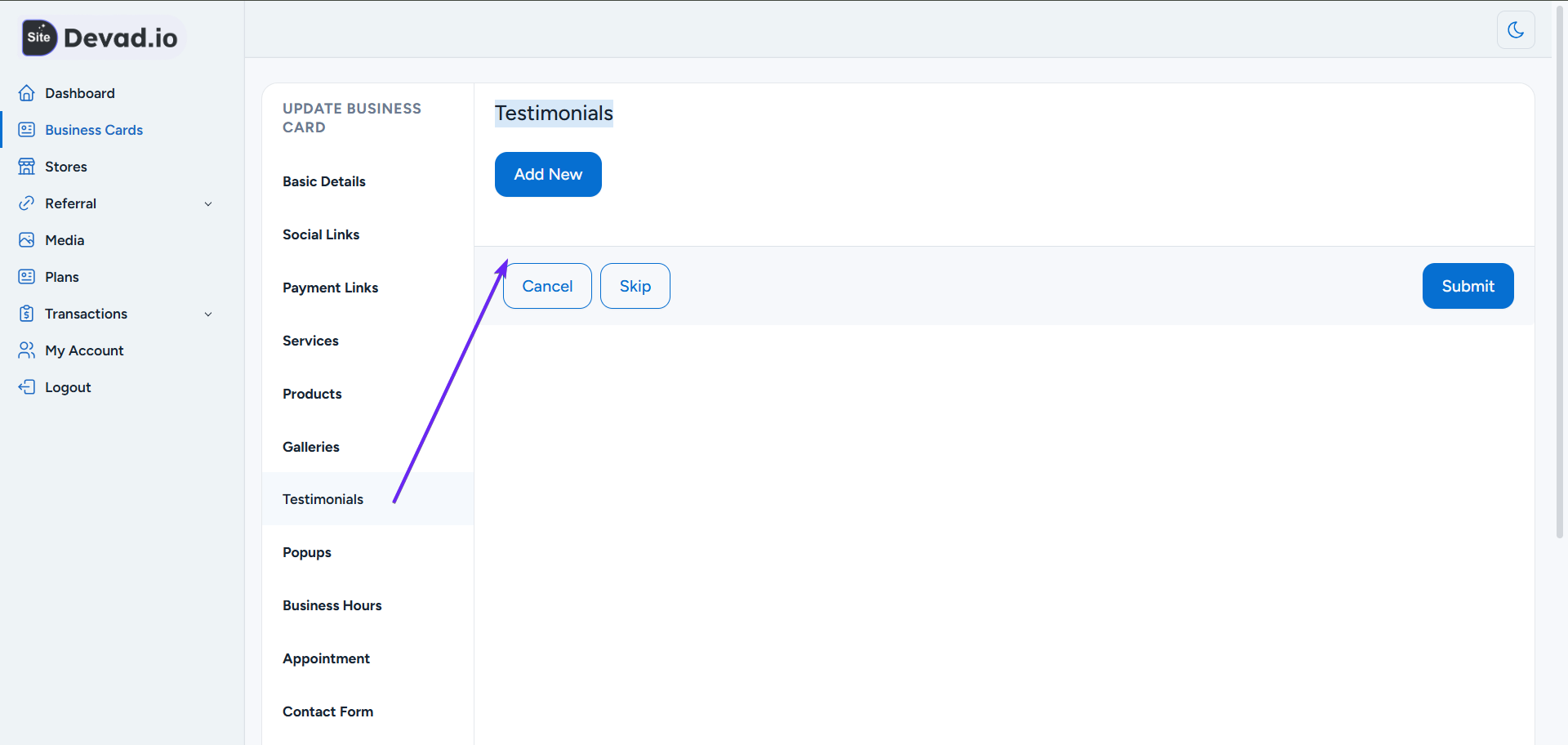
1- Add Reviewer Image and Reviewer Name
2- Add Reviewer Text and Subtext
Step 7: Add Popups

1- Enable Newsletter Popup (optional)
2- Enable Information Popup which is good for promotions and discounts
Step 8: Add Business Hours / Working Hours

1- Add your working hours. You can hide them
2- Choose hours and set if closed or open
Step 9: Set Appointment Timings

1- Slot duration max 60 (we can increase it, just contact us)
2- Set hour and week of availability
Step 10: Add Contact & Inquiry Form

1- Enable or Hide Contact / Inquiry Form
2- Add your Email address to receive booking notifications
Step 11: Service Booking

1- Add Basic Configuration (Available days: Sunday, Monday, etc.)
2- Add your Start and End time
3- Add your Email address to receive booking notifications
Step 12: Set Advanced Settings

1- Set Password Protection to allow only people with a password to access your page
2- Enable PWA to turn your website into a mobile app
3- Enable or disable other Language Switcher
4- Add SEO Configuration Settings
5- Add Custom CSS to customize your website. Add JS like analytics and pixels for conversion tracking
Step 13: Customize Section Titles

1- You can change section names according to your business
e.g., Products to Books, Services to Courses, or Testimonials to Reviews, etc.
Step 14: Connect to Your Domain or Subdomain

1- From page actions, click Connect
2- For our free subdomain: Only add your desired subdomain name + mufidx.net (e.g., storez.mufidx.net). If the subdomain is available, we will approve it ASAP.
2- For your own domain, please follow the instructions.