Guides
Start Ads Lab: connect, import and review segments
Use this guide to prepare a source-bound product review, understand its result and choose the next approved action. It does not create campaigns or authorize ad spend.
Before you start
Ads Lab is selected-customer Beta, not general access. Confirm your workspace and Beta eligibility with your tenant account owner. Access still depends on your role, AIO capacity, shared wallet, source permissions and the feature's current release state. Beta does not bypass those checks or unlock internal Dev tools. If your workspace shows a read-only preview, use it for navigation only.
Read the shared AIO service guidance and your current Plans & Billing information before a chargeable refresh or source request. This guide does not restate prices or promise that a funded wallet enables a provider connection.
1. Open the right workspace and screen
- Confirm the workspace in the profile menu, then open AI → Ads Lab.
- Read the availability notice. If it says Read-only preview. Ads is not enabled for this workspace, stop before account creation, import or refresh. Ask the account owner or support about eligibility; do not change workspaces or credentials to bypass it.
- Open Account Overview and check the displayed connection and source health. For product segmentation, choose Products Segmenter. Its Guide tab explains the intended sequence: Setup, Match, then Rules & Reports.
- Use the separate SEO tabs/settings for Search Console, Site Health, Site Performance and SEO Review. Ads account selection does not establish Search Console property access.
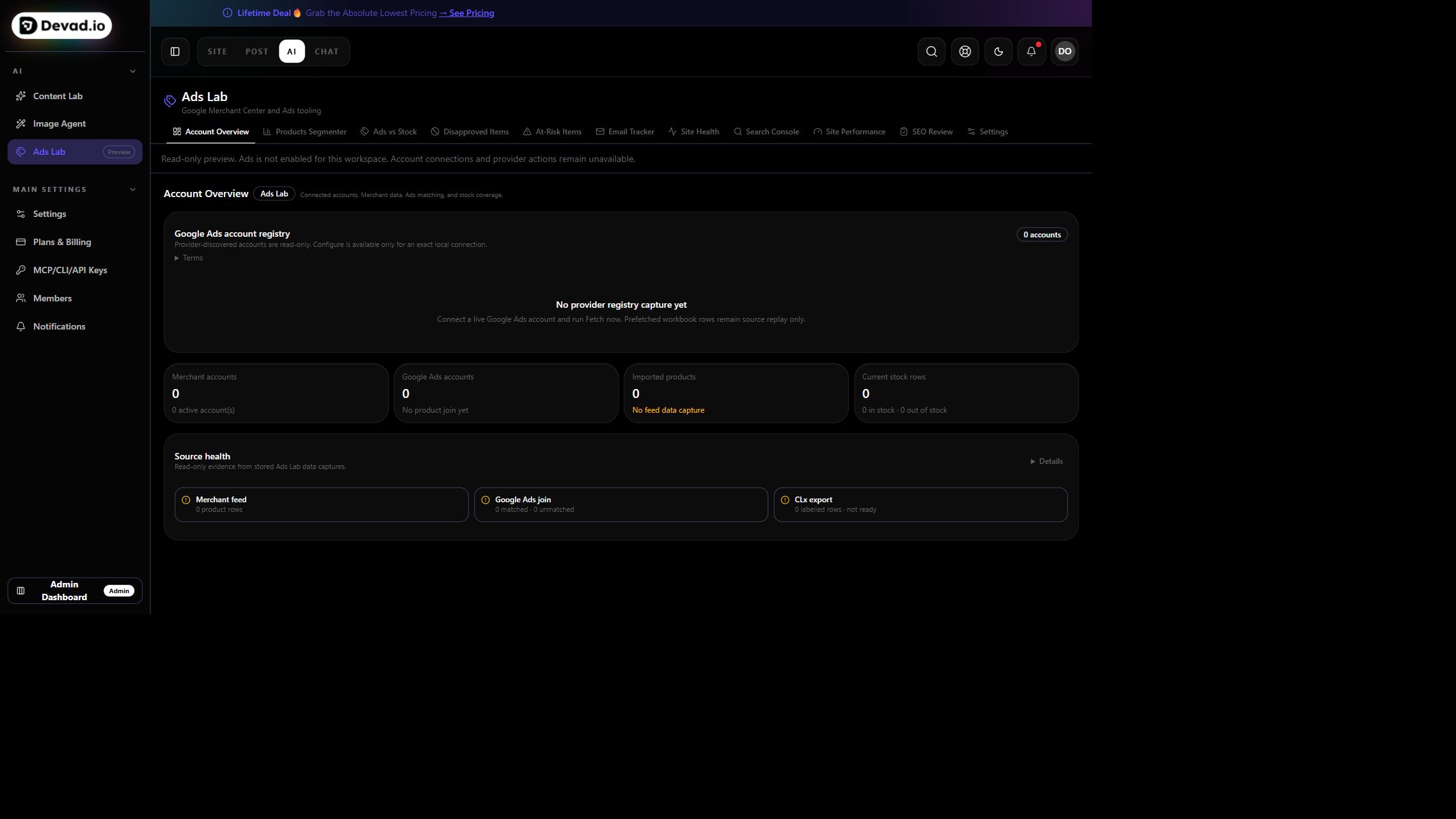
4 November 2026, Devad Docs QA: a retained empty/read-only prerequisite view. It is useful for orientation, not proof that the current Beta workflow or a Google connection is enabled.
2. Connect and select an account
- In Settings, inspect existing accounts before choosing Add account. Reuse the correct existing record instead of making a duplicate.
- If authorized to add a new account, choose its Merchant or Ads type and verify its displayed provider identity. Enter connection details only in the intended native form; keep credentials out of guides, chat messages and screenshots.
- Use Connect Google account when available. Review the Google account and requested access in the native flow. A locally saved account is not completed OAuth or a fetched report.
- Return to Products Segmenter and select the intended product account. Check its source mode and reporting context before reading results. If the account or catalog is absent, follow the prerequisite message rather than treating an empty report as success.
For the full connection procedure and recovery, read account connections.
3. Import a catalog and declare the evidence
- Open Setup → Import a source. Start with the catalog. Add Ads data by product and campaign, then optional backend sales and costs.
- Select the correct source role and format. CSV file or an approved public HTTPS CSV URL can be used for supported roles; the catalog also supports its XML path. A URL read makes a remote request, so check its destination and your authority first.
- Choose Read columns, map the actual headers, and provide the required reporting dates, currency, timezone and completeness confirmations. For example, a fictional file can map
item_codeto product identity andproduct_nameto title. Do not assume an accounting SKU is automatically a Merchant product ID. - Choose Preview mapped source. Review identity, counts, warnings and column mapping before Confirm this source. Selecting a file or reading its columns does not confirm an import.
- After confirmation, check the saved source/setup revision. Source changes clear earlier acceptance and disable its automatic schedule. Re-review the result before deliberately re-enabling any schedule.
| Source shown | Interpret it as | Do not infer |
|---|---|---|
| Live Google data | A provider result with the displayed account, dates and capture status | Every report is current, complete or from the same account |
| Manual import | Uploaded or URL-read data with its declared mapping, period and completeness | Google fetched it or it updates itself |
| Prefetched/demo data | A labelled example or restricted replay used in its permitted context | A live connection, current performance or a customer business result |
Keep the source label with any exported result. Uploaded files retain their declared dates; refreshing the screen does not make them fresh. See source import.
4. Match, segment and review
- In Setup, use Product matching to review SKU/name, variant, pack and price. Approve compatible costs and related sales values separately. An apparent match is not permission to copy every value.
- In Rules & Reports, review the rule order and conditions beside the unpublished result. Save the intended setup before relying on a stable report.
- Check reporting dates and source coverage before comparing products. Missing cost, tax or fees leaves profit unverified. Missing data is not zero. Read metrics and attribution for ROAS, LOAS and sales definitions.
- In Campaign CL2 protection, an empty campaign table can show the missing-input gate directly. Follow that displayed reason; campaign-grain evidence is separate from account product totals. Keep account CL2 unchanged and do not invent a rescue label from incomplete data.
- Use Accept reviewed setup only after checking the saved result. Acceptance, private CSV export, Merchant feed publication and scheduling are separate actions. A private CSV link is not a public Merchant polling URL, and an accepted report does not create a campaign or authorize ad spend.
Continue with matching, rules, campaign protection and acceptance/export for the task you actually need.
5. Resolve empty results and errors
| What you see | Next step |
|---|---|
| Read-only/Beta access unavailable | Ask the owner or support to check eligibility, role, AIO and release state. Do not bypass the gate. |
| No provider registry capture or no account/catalog | Check the saved account/source prerequisite. Empty rows do not establish a connection or completed import. |
| No rows match | Read campaign/input gates, current source coverage and filters before changing data. An empty filter result is not proof of zero performance. |
| Unknown/missing cost or incompatible dates | Correct or obtain the missing evidence. Do not replace unknown values with zero or claim verified profit. |
| Request failed, is pending or has an unknown outcome | Read its existing status before retrying. Avoid duplicate imports, connections or refreshes. |
| Shared capacity, budget or wallet restriction | Review the current AIO limits and native confirmation with the account owner. Do not split work into extra accounts/workspaces to evade limits. |
For support, include the visible tab/control, safe error text, approximate time, intended reporting period and whether the source was live, imported or demo. Mask credentials and sensitive business data. Do not send developer-console values, internal account identifiers, tokens or a full source file through an unapproved channel. Use the existing Help Center.
What result should you expect?
For an enabled, authorized workflow, you should be able to identify the selected account, declared source mode/period, saved setup revision and the reviewed unpublished report. If any part is missing, record the gap instead of claiming completion. Real Merchant registration/catalog access, downstream Google fetching and actual availability in your workspace remain separate checks.
Ads API/CLI/MCP access remains closed in preview; this guide offers no headless workaround. Use only the available native UI. Return to the learning path.