Guides
Select the right Search Console property and read reports
Connect a verified Google Search Console property to SEO Lab, choose the reporting period, and read the saved report. You decide which properties to add after Google sign-in.
Before you start
Use a workspace with SEO Lab access. You need an owner or administrator role to connect Google, change settings, or request fresh data. A read-only view does not grant those permissions.
Your Google account must already have access to the intended Search Console property. A Domain property and a URL-prefix property cover different addresses. Choose the property that covers the website and URLs you want to review.
1. Open the connection window
- Open AI → SEO Lab → Settings.
- In Google Search Console, select the Search Console icon with the + badge.
- In Connect Search Console, choose Use Devad (recommended) or Use my Google Cloud project.
- For your own project, enter its complete OAuth client ID and client secret. Register the exact redirect address shown in the window with that Google client. Leave a saved secret empty only when the window says it will be kept.
- Select Sign in with Google.
You can also start from the Google connection step on the SEO Lab overview. Both entry points use the same connection window.
Using Devad does not require you to create a Google Cloud project. The own-project option is for teams managing their own Google setup. Never paste an OAuth secret into a support message, report, or public document.
2. Choose only the properties you want
- In Google, choose the account that can access your website.
- Review the requested permission. The normal reporting connection uses read-only Search Console access.
- After Google returns you to Devad, review Choose Search Console accounts. Signing in does not add every available property.
- Tick the properties you want to connect. Even when only one property is found, confirm it explicitly.
- Check the Selected and New accounts counts, then select Connect selected.
Use Search accounts to find a property. Select all visible and Clear visible apply to the filtered list; review the total selected count before confirming.
An already connected property is labelled. Use its Reconnect action to renew that connection instead of adding a duplicate. To leave without attaching properties, choose Cancel. The existing connections and reports are kept.
If Google stops the sign-in or no properties appear, check the selected Google account and its Search Console access. Contact your workspace owner or support if Devad's Google setup is unavailable.
3. Select the property and reporting period
- Open SEO Lab → Search Console.
- Check the connection status and Select a property.
- Choose Date range.
- When a Save button appears after a change, select it before refreshing.
- Check the displayed property and period, then select Refresh report when you want a fresh Google read.
- Read the returned status and Fetched time before requesting another refresh.
Saving a selection does not fetch a report. Opening a saved report also does not establish that a new fetch occurred.
Keep clicks, impressions, click-through rate and average position with the property and date window they describe. Google search data is not a real-time visitor counter.
4. Use the six report tabs
| Tab | Use it for |
|---|---|
| Performance | Review clicks, impressions, CTR and average position. Switch between Queries and Pages, or use Export displayed rows. |
| Page indexing | Import and review Google's indexing CSV reports. Review the export date, reasons and supplied URL examples. This is different from a fresh Performance report. |
| Properties | Review property details and available property actions for the selected connection. |
| Sitemaps | Review sitemap information. A submission action, when enabled, needs its own confirmation. |
| URL inspection | Request Google's inspection information for one URL in the selected property. An inspection does not itself request a crawl or publish a website change. |
| API / MCP / CLI | Find the supported integration controls and instructions for your own tools. Use an authorized workspace key; never substitute a Google client secret for it. |
Google changes and fresh provider requests need their own enabled controls and permissions. Connecting read-only reporting does not authorize all property or sitemap changes.
The Performance export contains the displayed query or page rows. Google may omit anonymized or lower-ranked rows, so adding those rows is not a replacement for the report's totals.
5. Reconnect or remove one connection
Open SEO Lab → Settings and find the connected property. Its row offers Reconnect, Remove and Settings.
- Reconnect opens the Google connection window for that target. Review the returned property and confirm your selection. Existing reports and other connections are kept.
- Settings opens the selected connection's settings.
- Remove is for the Devad connection. Read its confirmation before continuing. Removing the active connection clears its selected property; choose another connected property before requesting a new report.
Removing a connection in Devad and removing a property from Google are different actions. Check the action's confirmation and destination carefully.
Understand the result
| What you see | What it establishes |
|---|---|
| Authorized Google report | Data for the displayed property, period and capture time. |
| Saved or cached report | A previously retrieved snapshot with its own freshness. |
| Empty or unavailable response | Missing data or a connection/scope issue; it is not automatically proof of zero traffic. |
| Labelled sample data or imported values | An example or imported source, not a fresh Google Performance report. |
For a website migration, compare the old and replacement URLs in the appropriate property and comparable date windows. One successful workspace report does not mean every tenant or hostname is connected.
Request limits and recovery
Current shared service guards remain 30 analytics requests per minute and 100 URL inspections per day. These are operational request limits, not a separate per-workspace allowance, price, or capacity promise. Google can impose additional limits.
If a limit is reached or the result is uncertain, check the existing report and wait for the applicable window. Avoid parallel retries or switching workspaces to evade shared limits. A failed refresh does not replace a previously saved report.
If access was revoked, use Reconnect with the intended Google account. If the saved property and returned report disagree, ask the workspace owner or support before changing more settings.
These guards do not set the fee for Site Health or deterministic page inspection. Those tools have their own service policy; extracting a page is not an AI model run.
Historical illustration
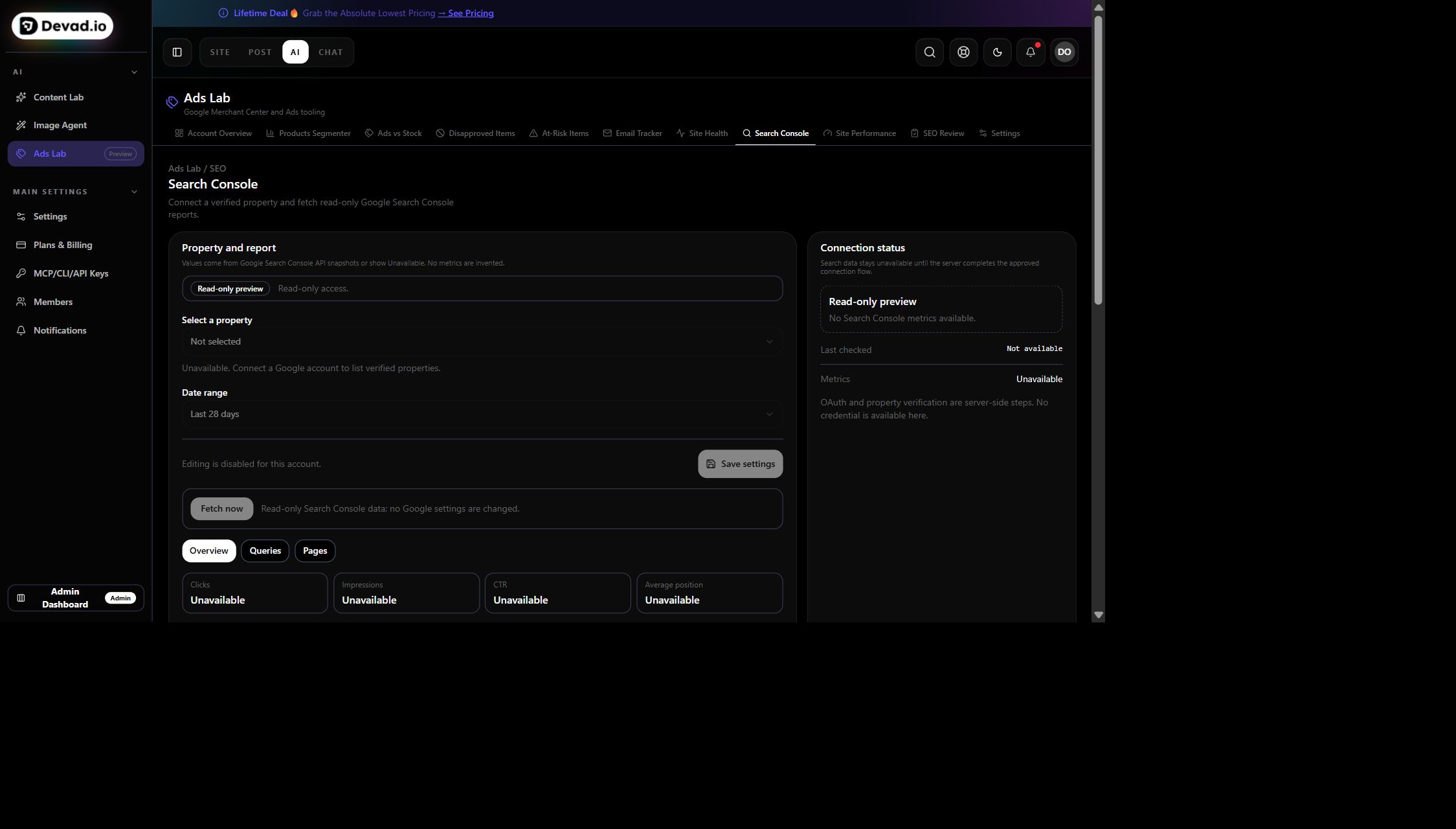
The following image is retained from 4 November 2026, Devad Docs QA. It shows a historical read-only connection/property view with unavailable metrics. It does not show the current connection picker, six-tab layout, or a connected traffic result.